blue’Log #
The blue’Log device and the required license can be ordered through KACO new energy sales partners.
Prerequisites #
Before you add and configure blue’Log in KACO, make sure the following prerequisites are met:
- A KACO system has already been created.
- A blue’Log device is available for the system.
- The required blue’Log license is activated.
Where to buy #
To buy a blue’Log device or a blue’Log license, use the KACO new energy “Where to buy” page:
The page provides regional contact details and distributor information so you can find the right point of contact for your location.
Set up blue’Log in KACO #
After the system has been created, open the System Overview page and use Add device to add a communication device to the system.
Users can add either a Wi-Fi stick or a blue’Log device. Only one blue’Log can be added per system.
Add blue’Log to the system #
- Open the System Overview page.
- Click Add device.
- Select blue’Log.
- Complete the add-device flow.
- After blue’Log has been added, the screen displays the connection details required for the blue’Log portal.
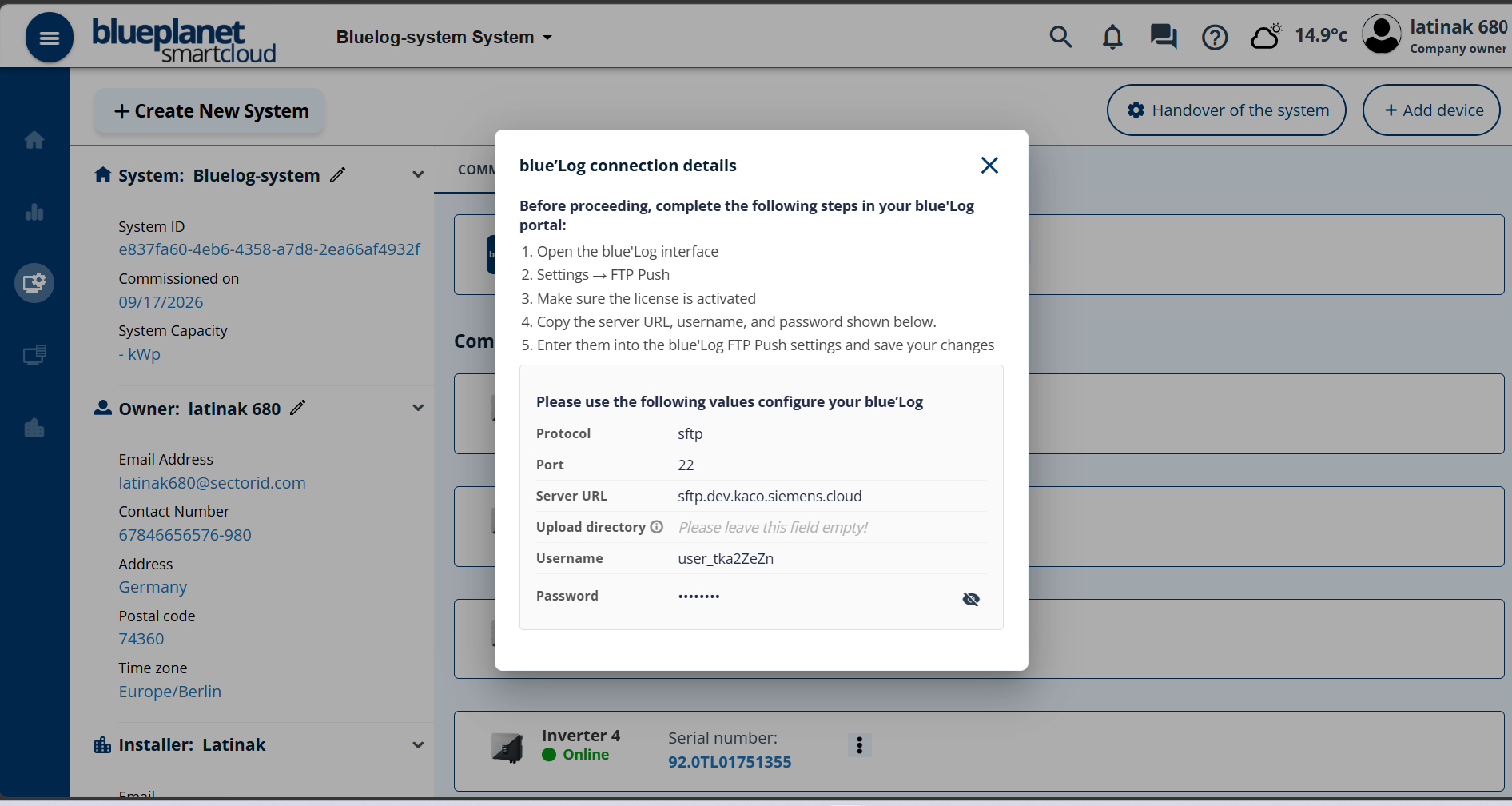 Connection details shown in KACO after blue’Log is added to the system.
Configure the blue’Log portal #
Before proceeding in the blue’Log portal:
- Open the blue’Log interface.
- Navigate to Settings -> FTP Push.
- Make sure the blue’Log license is activated.
- Copy the connection values shown in KACO.
- Enter the values in the blue’Log FTP Push settings and save the changes.
Use the values shown in KACO to configure blue’Log:
- Protocol:
sftp - Port:
22 - Server URL: use the value shown on screen in KACO
- Upload directory: leave this field empty
- Username: use the value shown on screen in KACO
- Password: use the value shown on screen in KACO
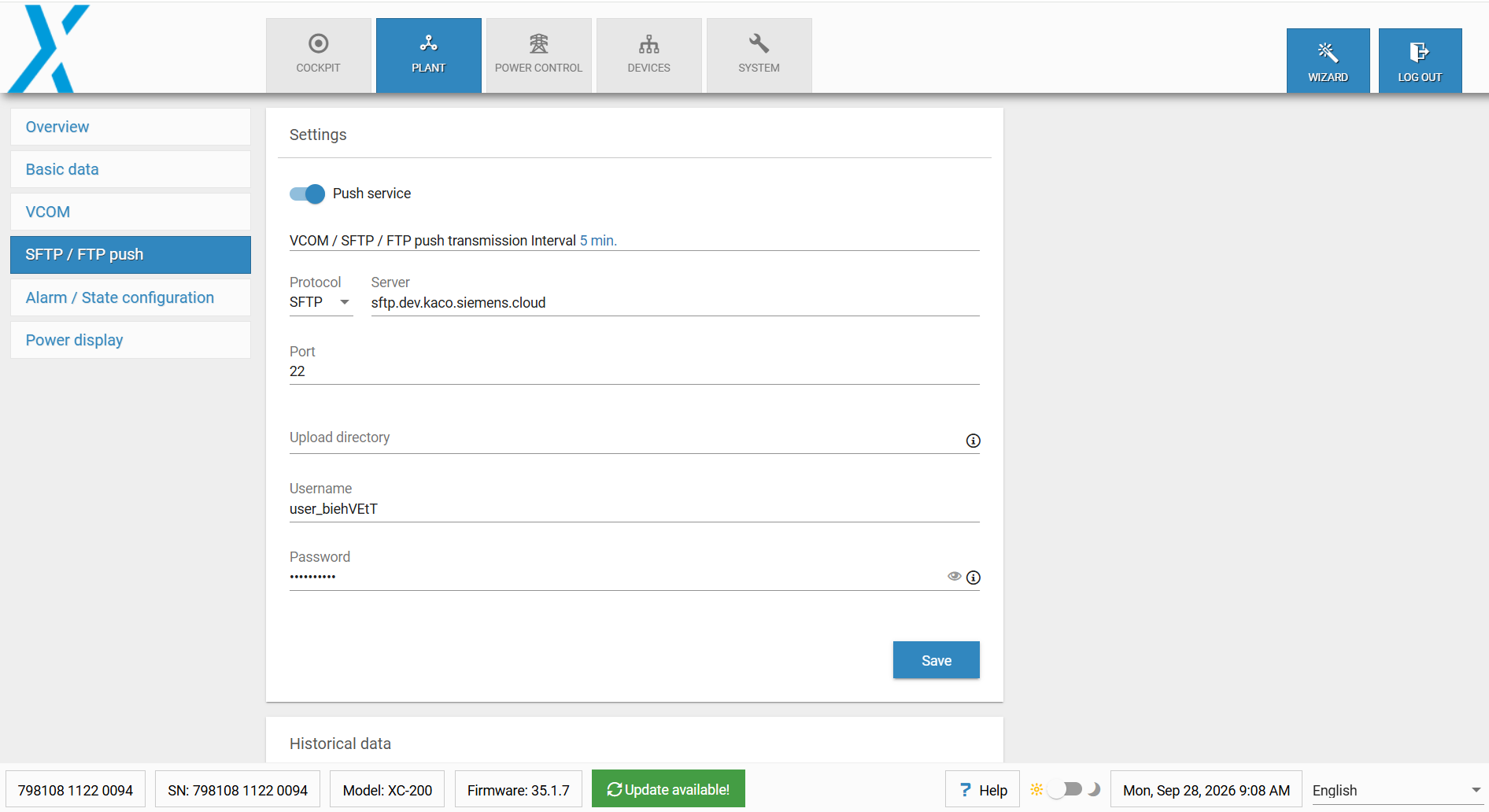 Enter the KACO connection details in the blue’Log SFTP / FTP push settings and save the configuration.
Once the settings are saved in the blue’Log portal, the connection to KACO is established.
Limits and important notes #
- Only one blue’Log can be assigned to a system.
- KACO can display a maximum of 10 inverters per blue’Log.
- If more than 10 inverters are connected to one blue’Log, KACO selects 10 inverters at random for display.
- If the random selection is not acceptable, the user should switch to blueplanet web pro.
- Once a device has been registered in blueplanet web pro, it is blacklisted for KACO and cannot be registered again here.
- KACO supports a maximum of 1 MW per system.
- If 5 inverters exceed the 1 MW limit, KACO selects a random set of 4 inverters whose combined capacity is below 1 MW.