Functionality overview #
Homeowners who wish to receive services from a company can contact a provider within their region and share the System ID of the plant that was originally created for them by another installer or company. The company owner can then use the Add System function to include this system in their portfolio by entering the provided System ID.
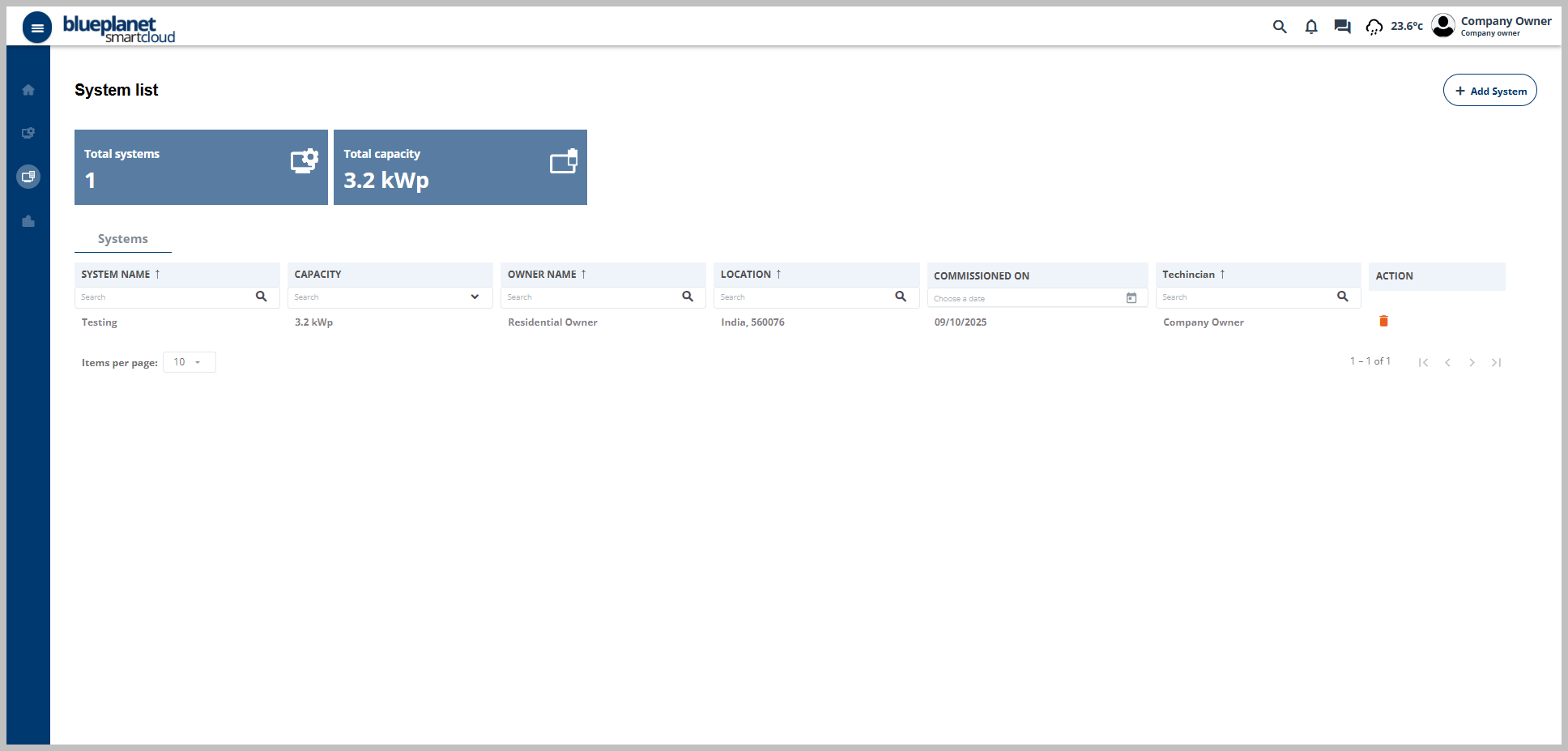 pic 1- System lsit view
How to Add a System #
- There is an Add System button on the system list page for Company Owner to add a system using a System_ID.
- Clicking the Add System button opens a pop-up window.
- The pop-up contains:
- An input field for entering the System_ID.
- Add and Close (X) buttons.
- You can close the pop-up by clicking the X button or pressing the Esc key.
- When a valid and unique System_ID is entered and Add is clicked:
- The system validates the System_ID.
- If valid, the new system is added as a row in the pending requests table.
- The pop-up closes automatically.
- A new section, Access Requests, is displayed in the system list.
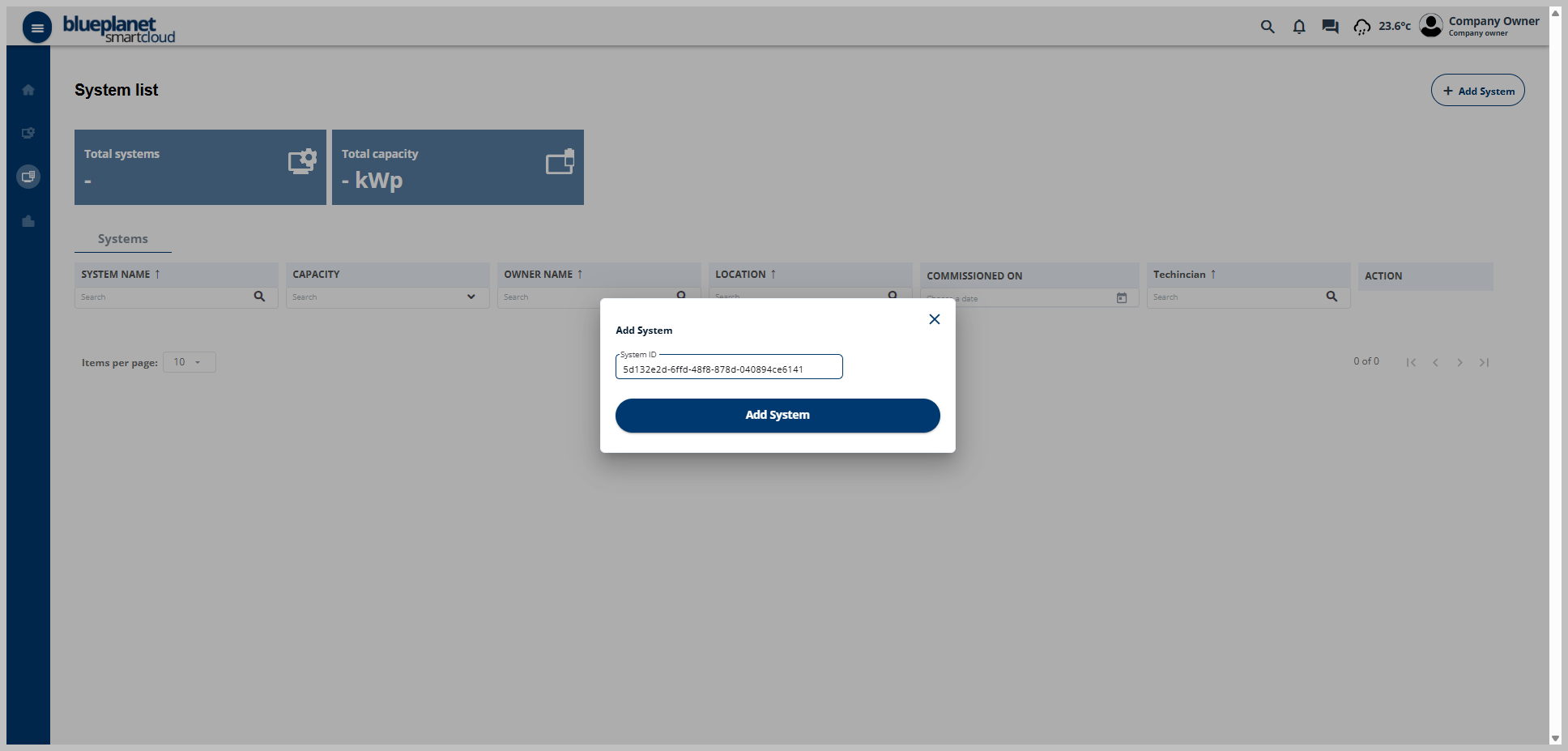 pic 2- Add System
System Pending Requests #
- The section includes a table with the following columns:
- System ID
- Requested On
- Action
- Pagination is enabled after 5 entries, and you can sort items per page.
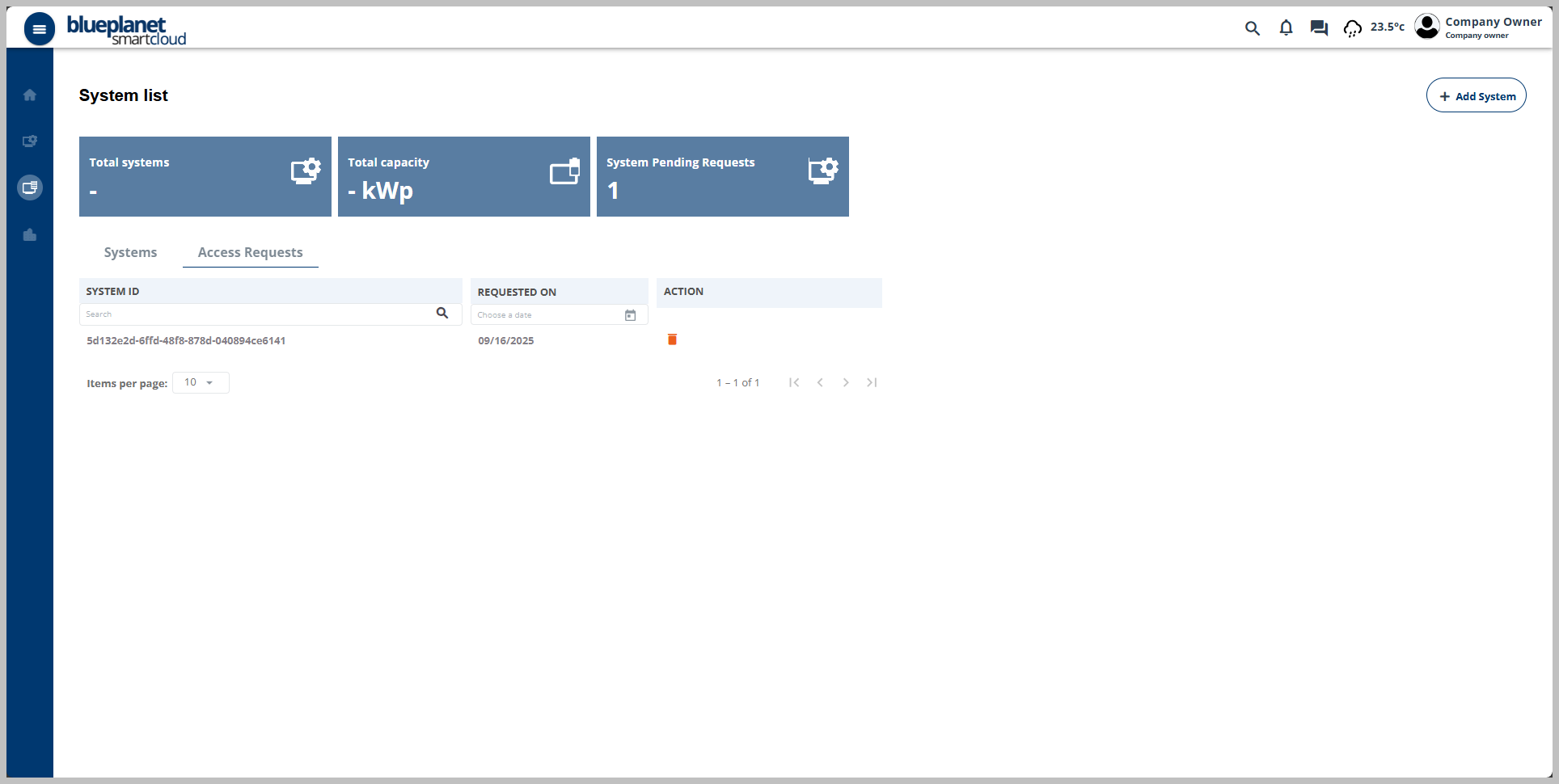 pic 3- Request sent to user
Work flow #
- Once the Home Owner system is added by the Company Owner, a notification will be triggered to the Home Owner.
- There is an Click to take action link on the notification for the Home Owner.
- Click on the link Click to take action opens a pop-up window “Installer Details”
- The pop-up contains:
- Installer name , Email and Contact name of the Company Owner.
- Reject access and Grant access buttons.
- If user clicks on Reject access, The company owner will not have access to the System and system information will be deleted for the Company Owner.
- If User clicks on Grant access, the intaller information will be updated to system and Company owner will have access to the system.
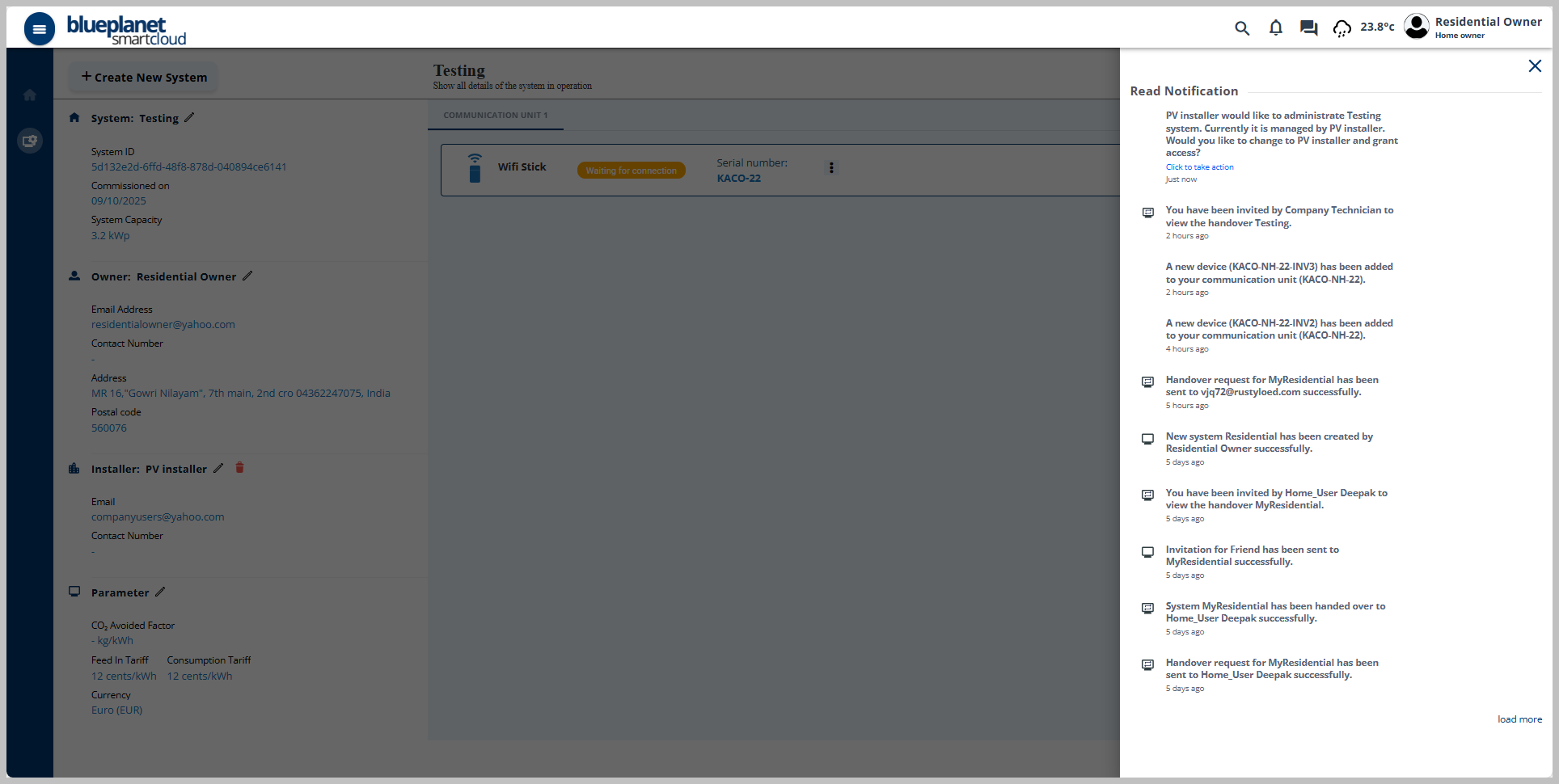 pic 4- Home owner notification request to access the system
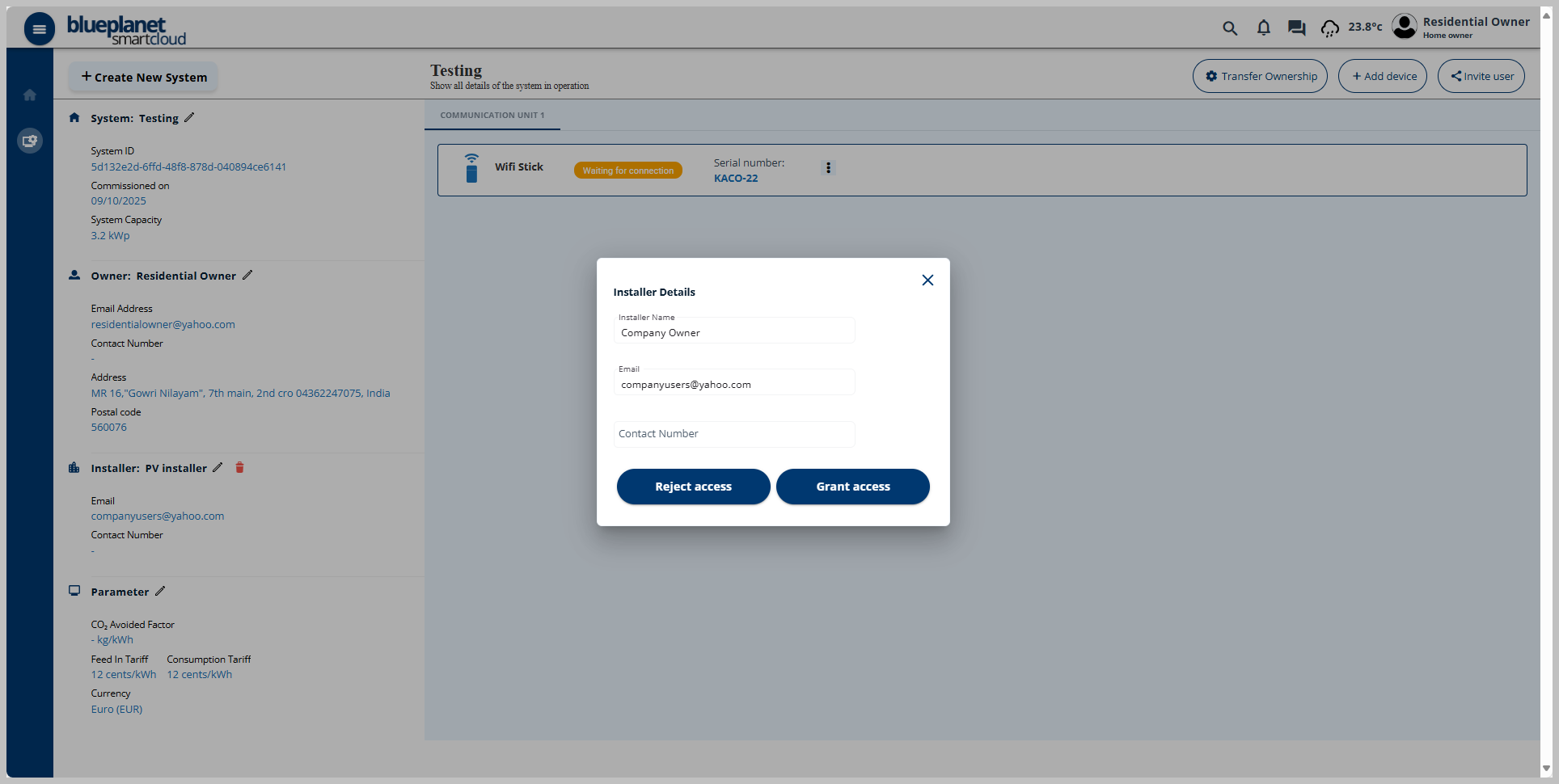 pic 5- Popup to Grant / Reject Access
-on Grant access Home Owner receive a notification
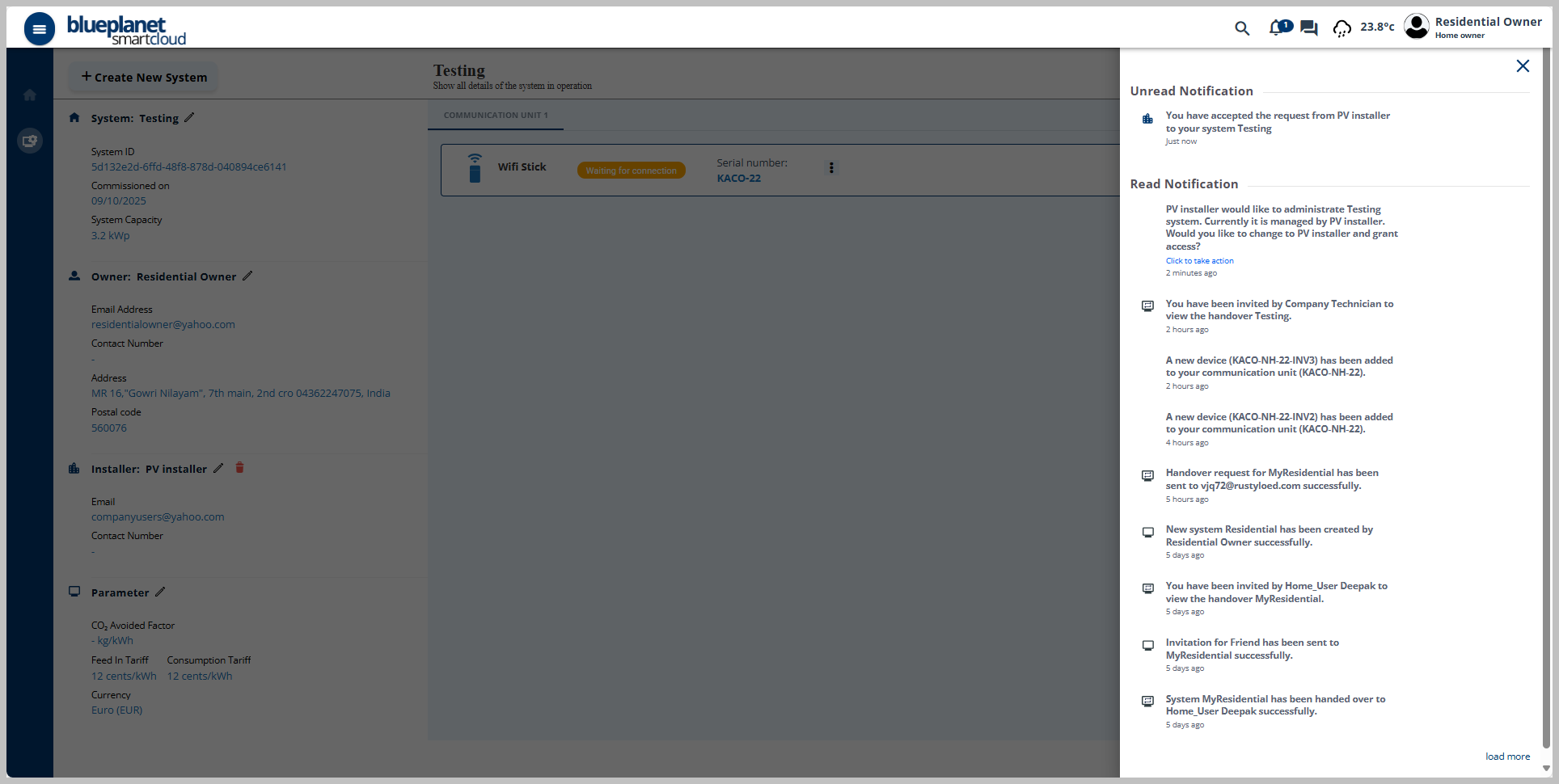 pic 6- Grant notification