Steps for Importing a System from blueplanet Web public #
This guide provides step-by-step instructions for migrating your system from blueplanet web public to blueplanet smartcloud.
1. Sign Up #
Note: The sign-up step is only required if you do not have a blueplanet smartcloud account yet. If you already have one, please log in and proceed to the Enable blueplanet Web public Import step.
1.1 Open Registration Page #
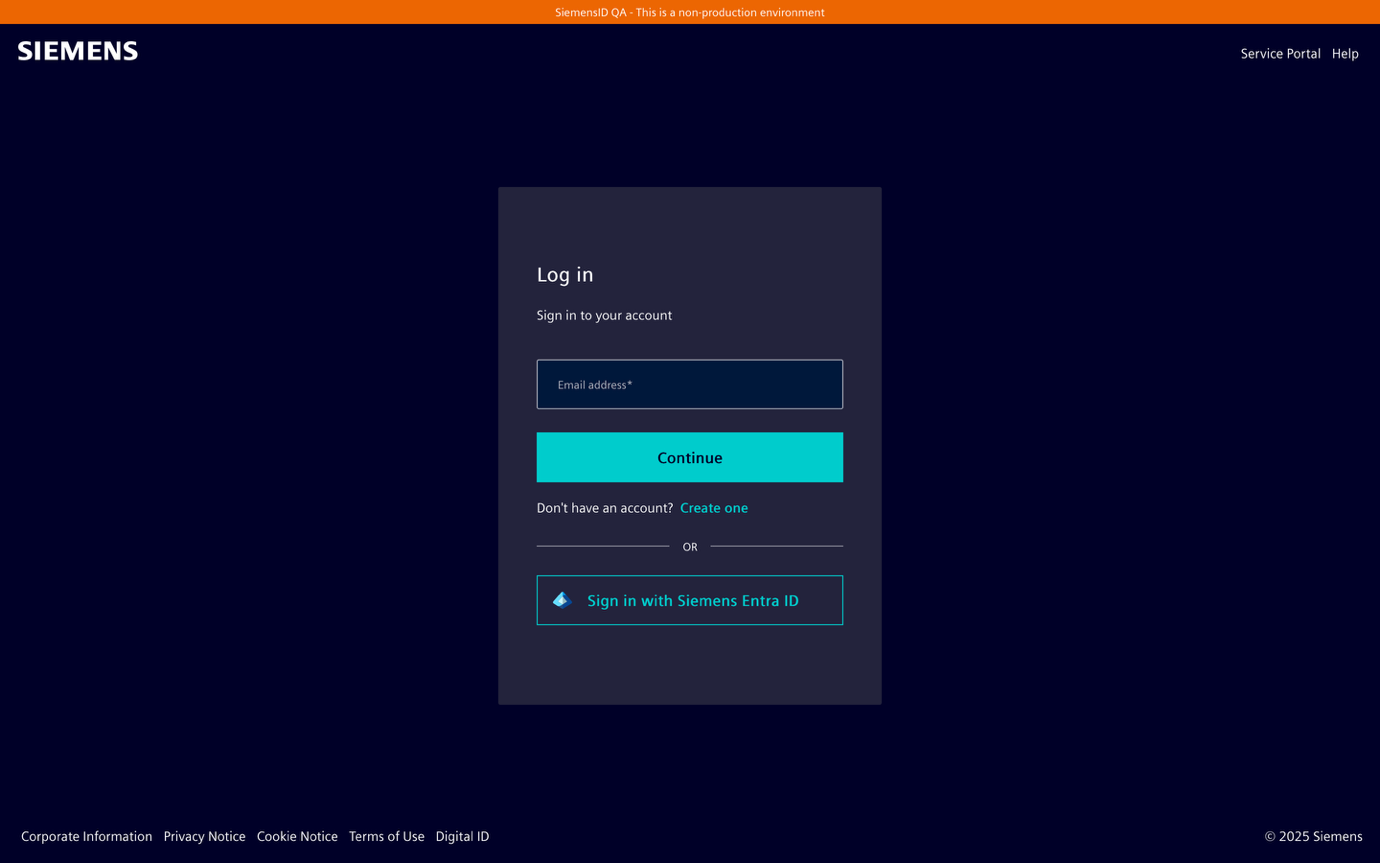
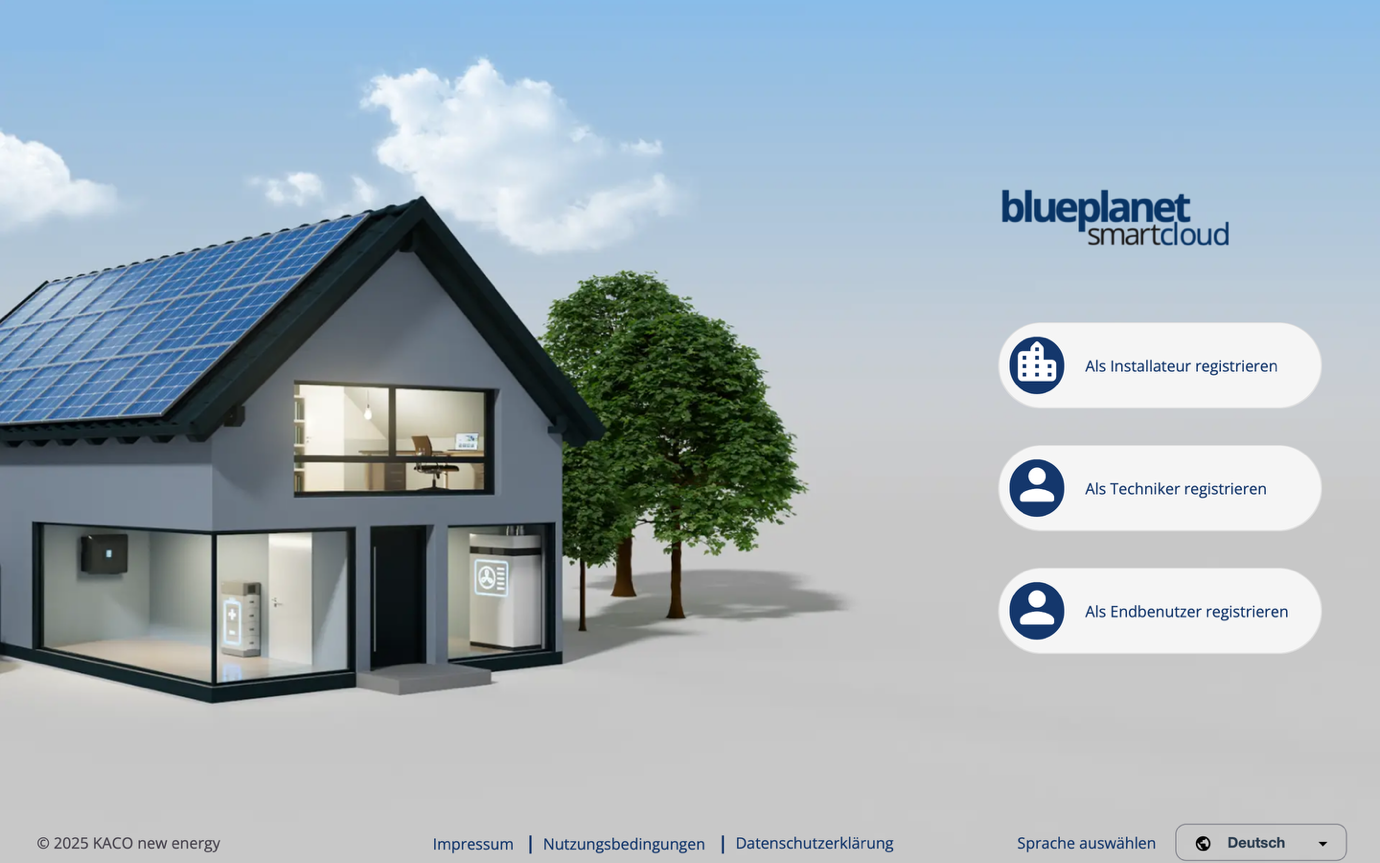
Open the web page and click the registration button.
Prod env: https://cloud.kaco-newenergy.com/login
1.2 Create Account Link #
Click the “Create one” link to start the registration process.
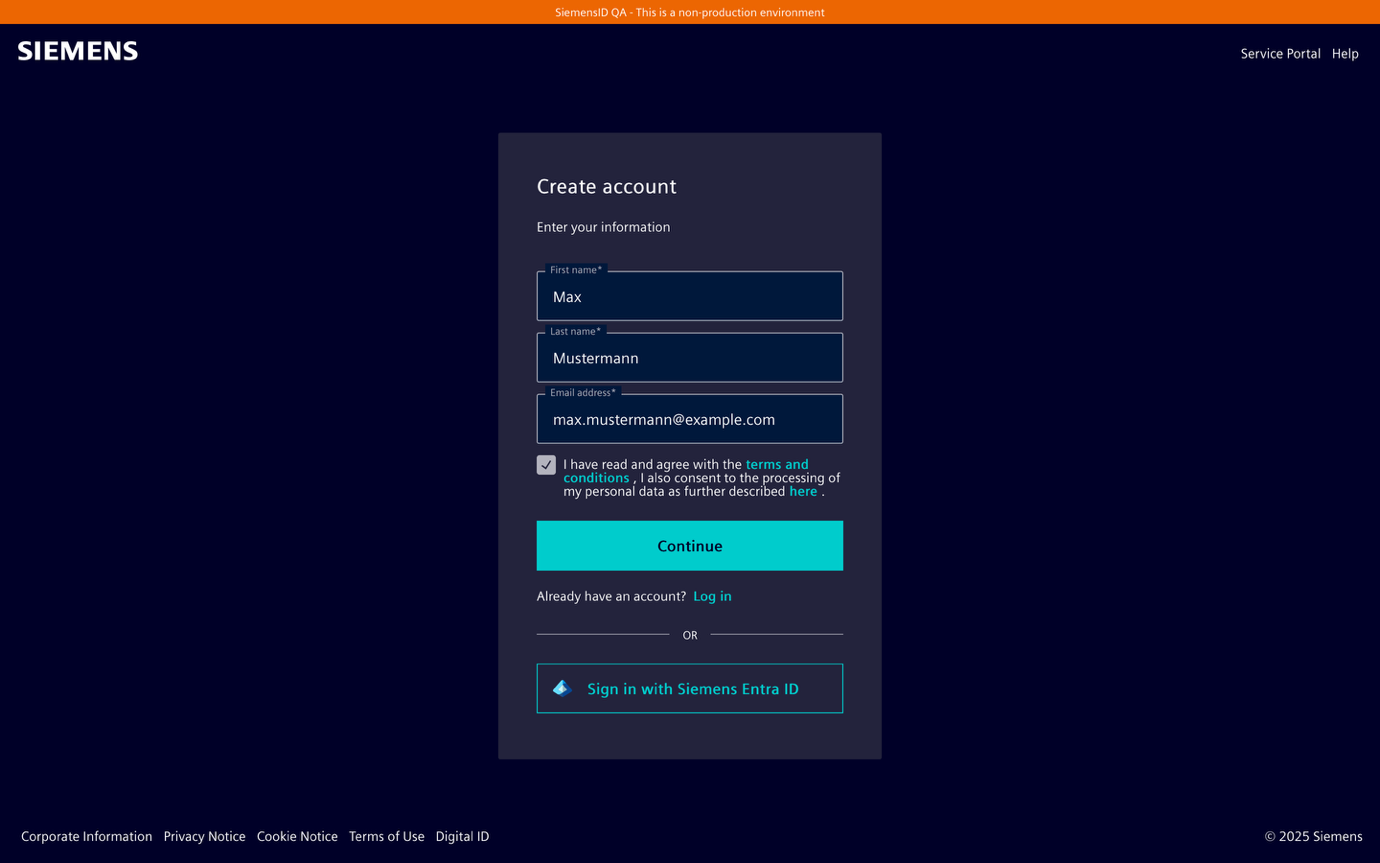
1.3 Fill Out Registration Form #
Fill out the form, click the checkbox, and click “Continue”.
Note: Email address can be different from the one used in blueplanet Web public.
1.4 Set Password #
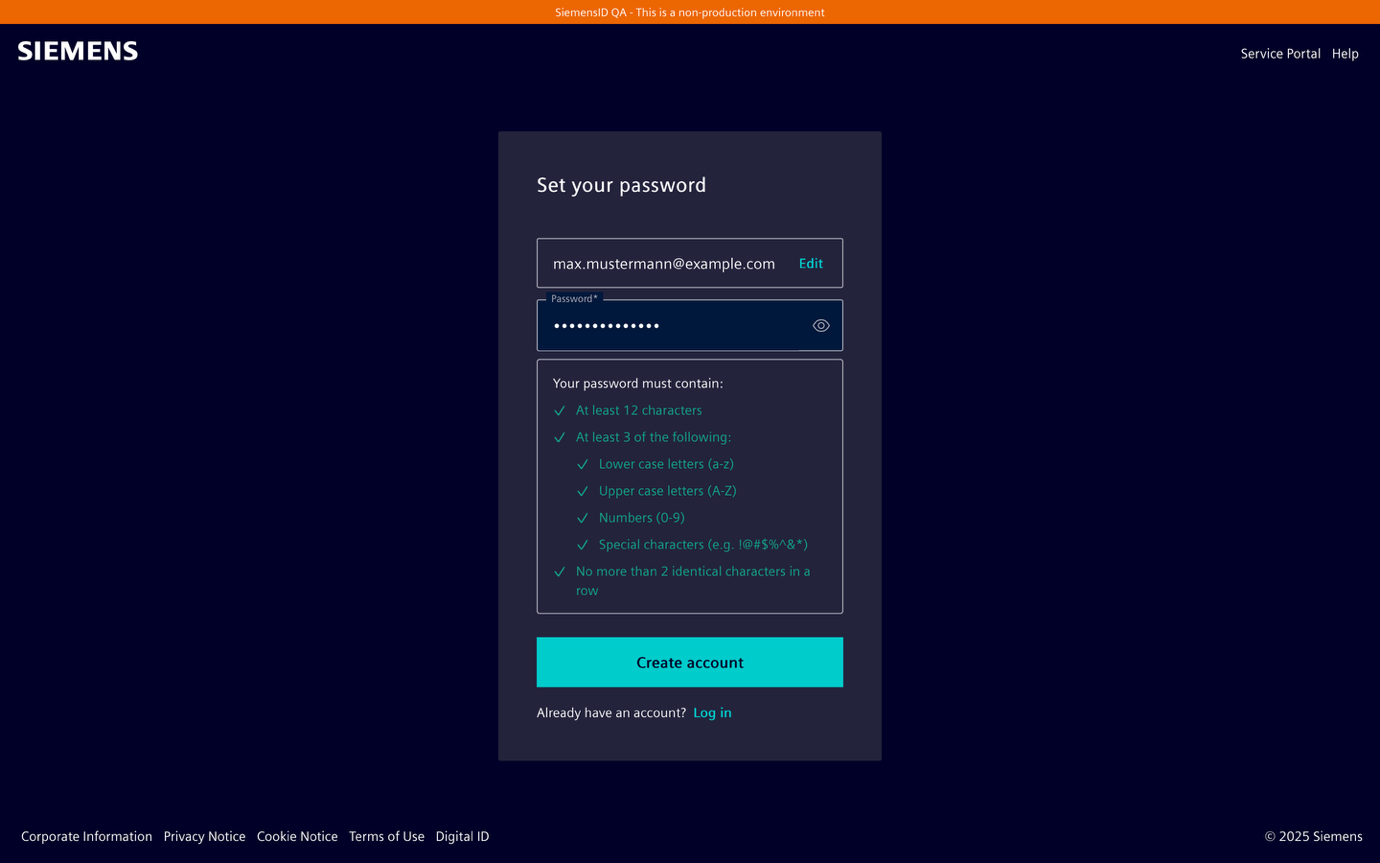
Specify a strong enough password and click the “Create Account” button.
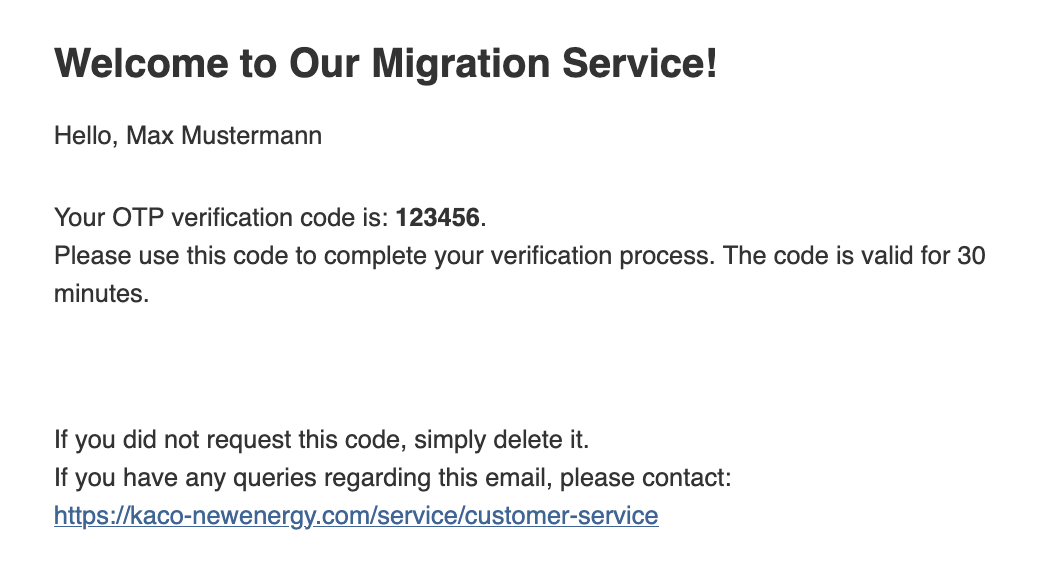
1.5 Email Verification #
Wait for the 6-digit code email, enter the code, then click “Continue”.
1.6 Choose Your Role #
Choose your role by clicking the “End Customer” button.
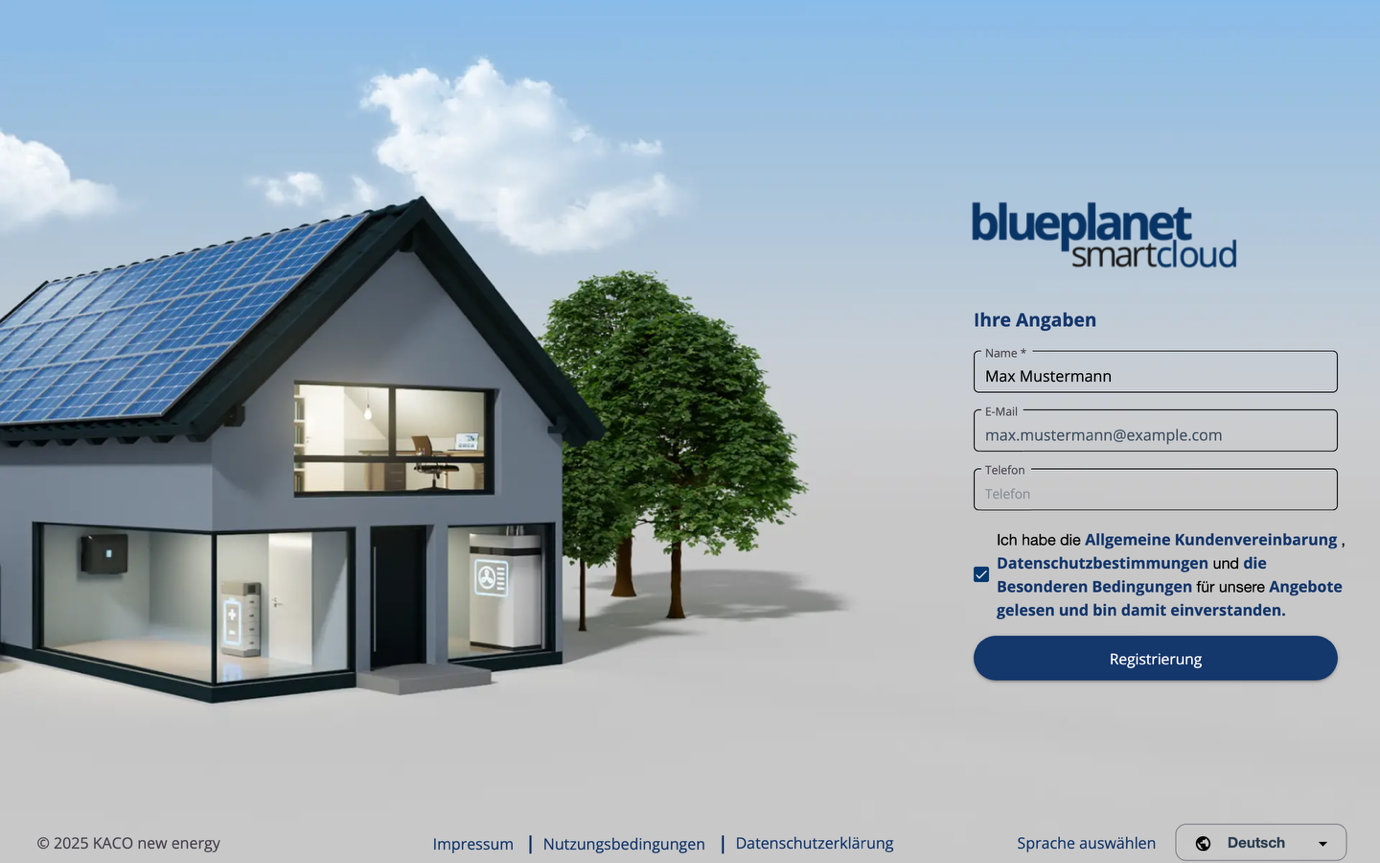
1.7 Accept Terms #
Accept Terms with the checkbox and click the “Register” button.
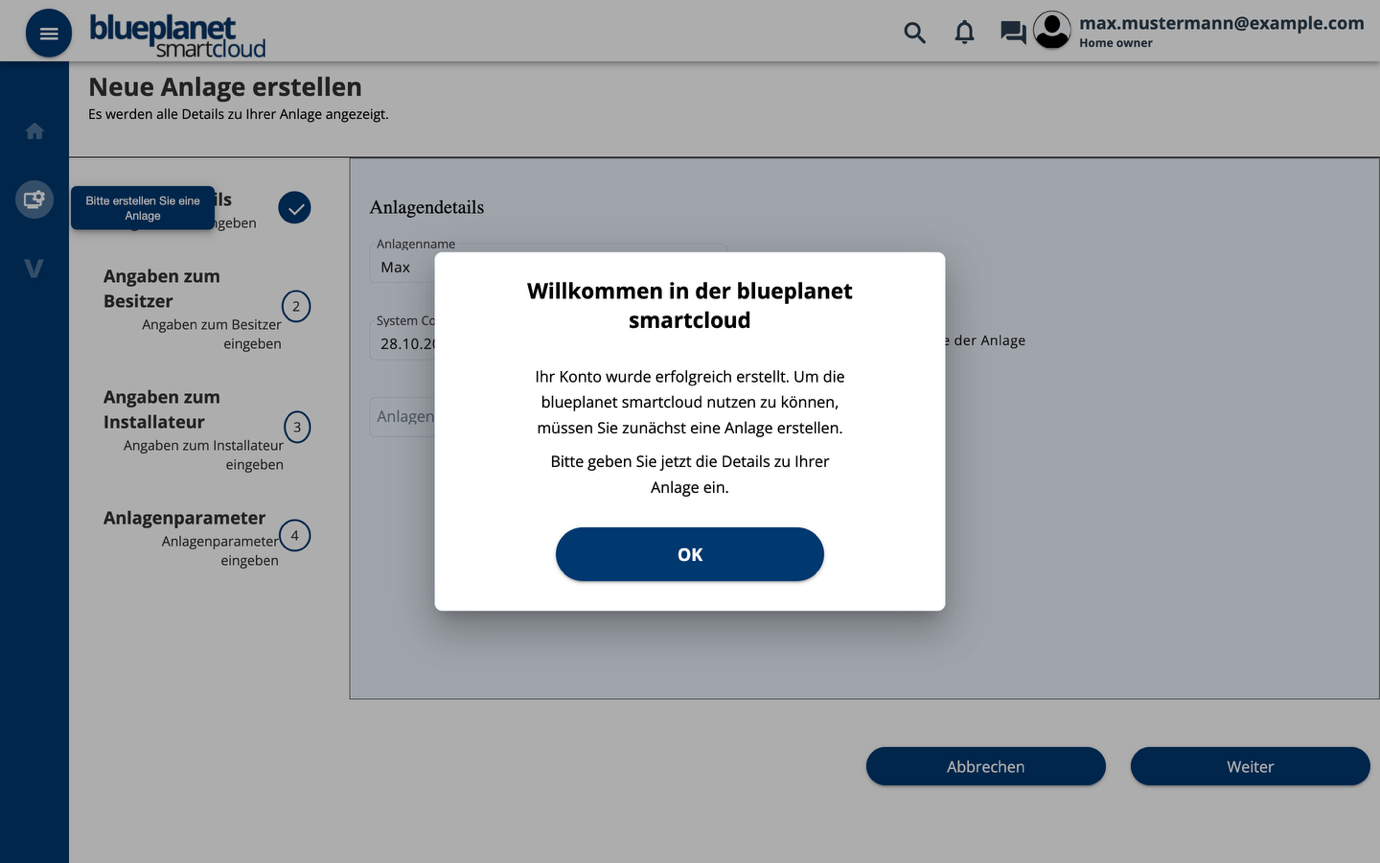
1.8 Welcome Message #
Click “OK” button to dismiss the welcome message.
2. Enable blueplanet Web public Import #
Important: Please make sure you are using the production environment: https://cloud.kaco-newenergy.com/login
2.1 Access Import Option #
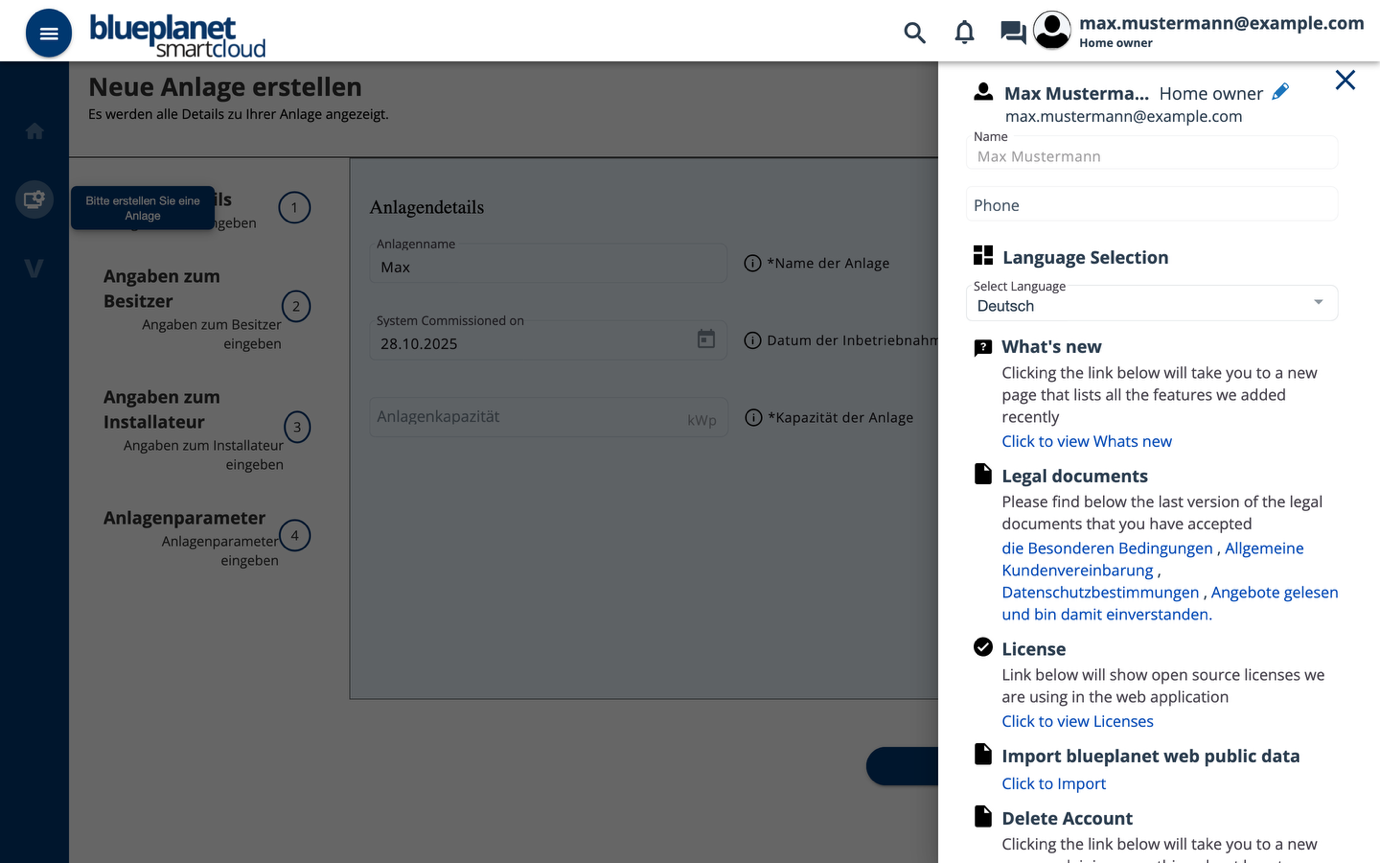
Click the Profile button in the top-right corner and click the blue text “Click to import” in the “Import blueplanet web public data” section.
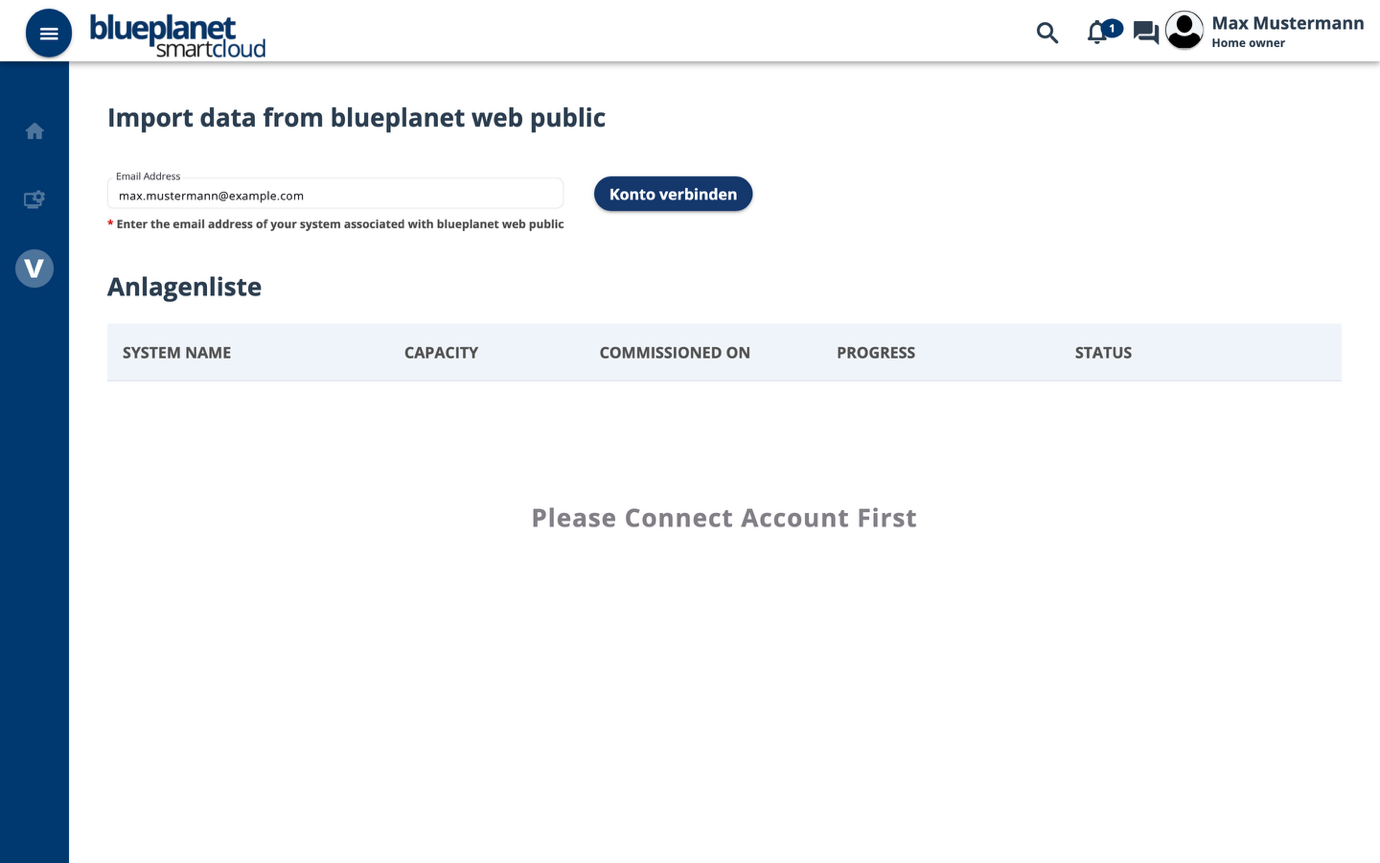
2.2 Connect Accounts #
Enter the email address that is specified as an “owner” for the system(s) you would like to import from blueplanet Web public and click “Connect Accounts”.

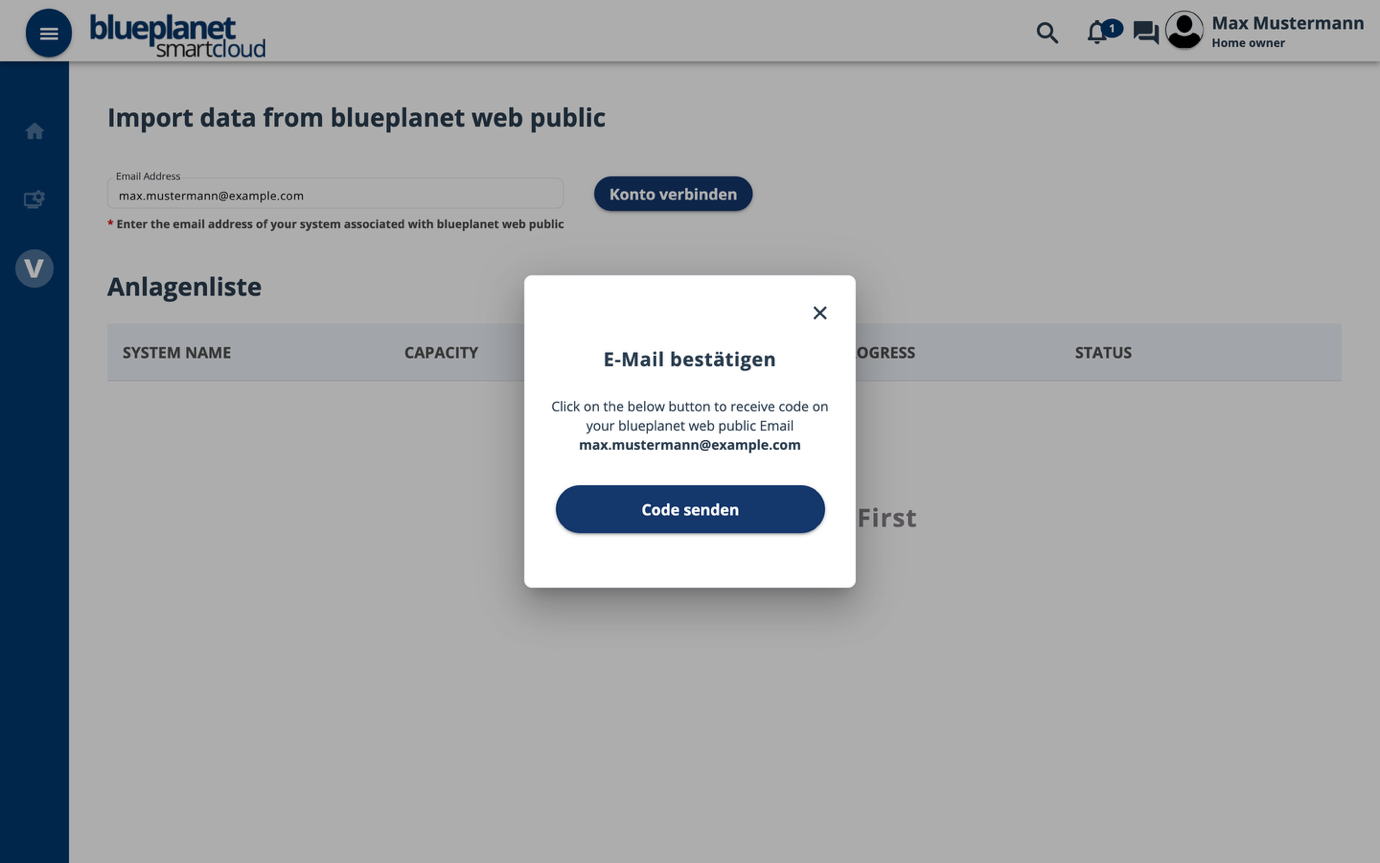
2.3 Send Verification Code #
Verify and confirm your email address by clicking “Send Code”.
2.4 Receive Code #
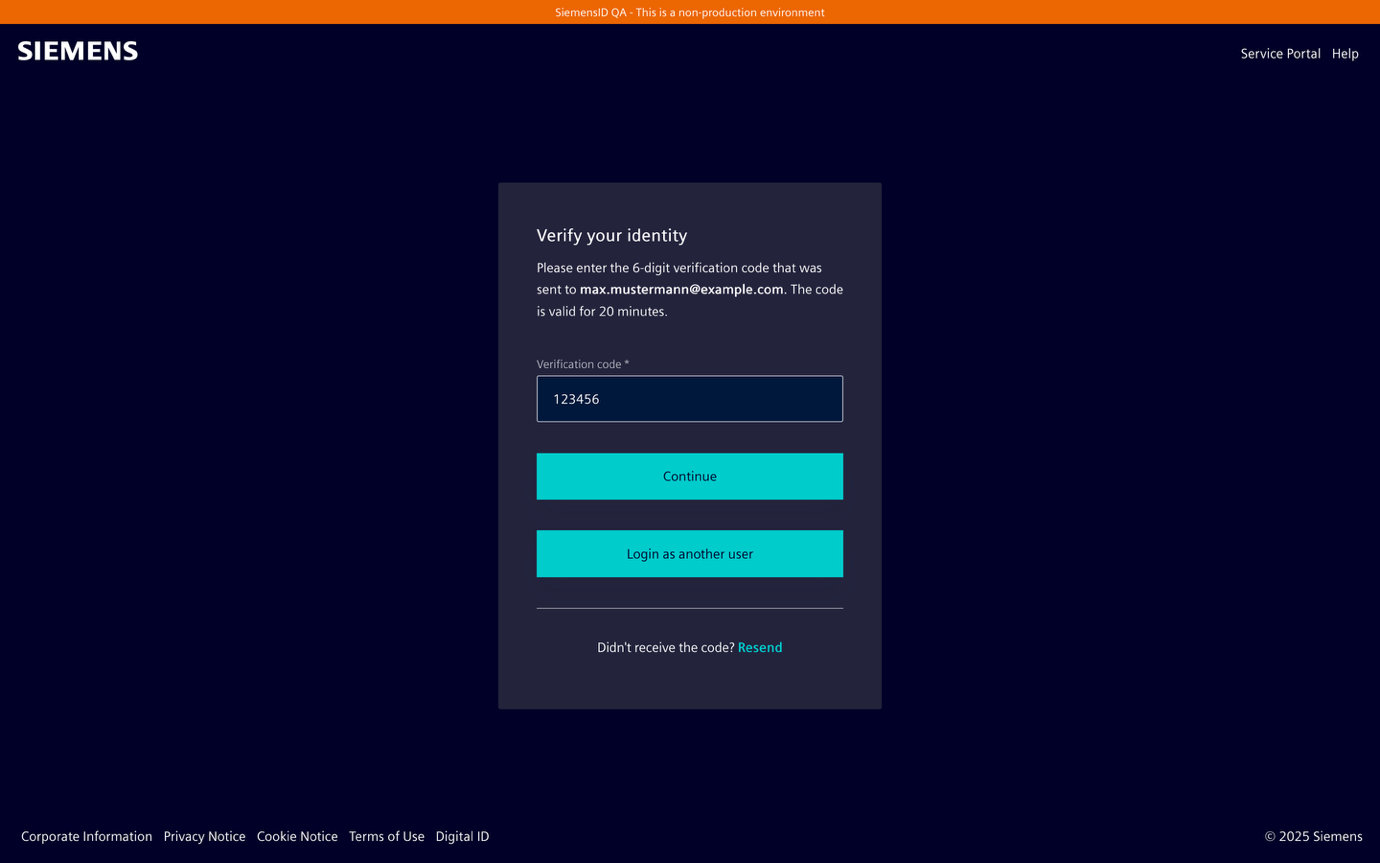
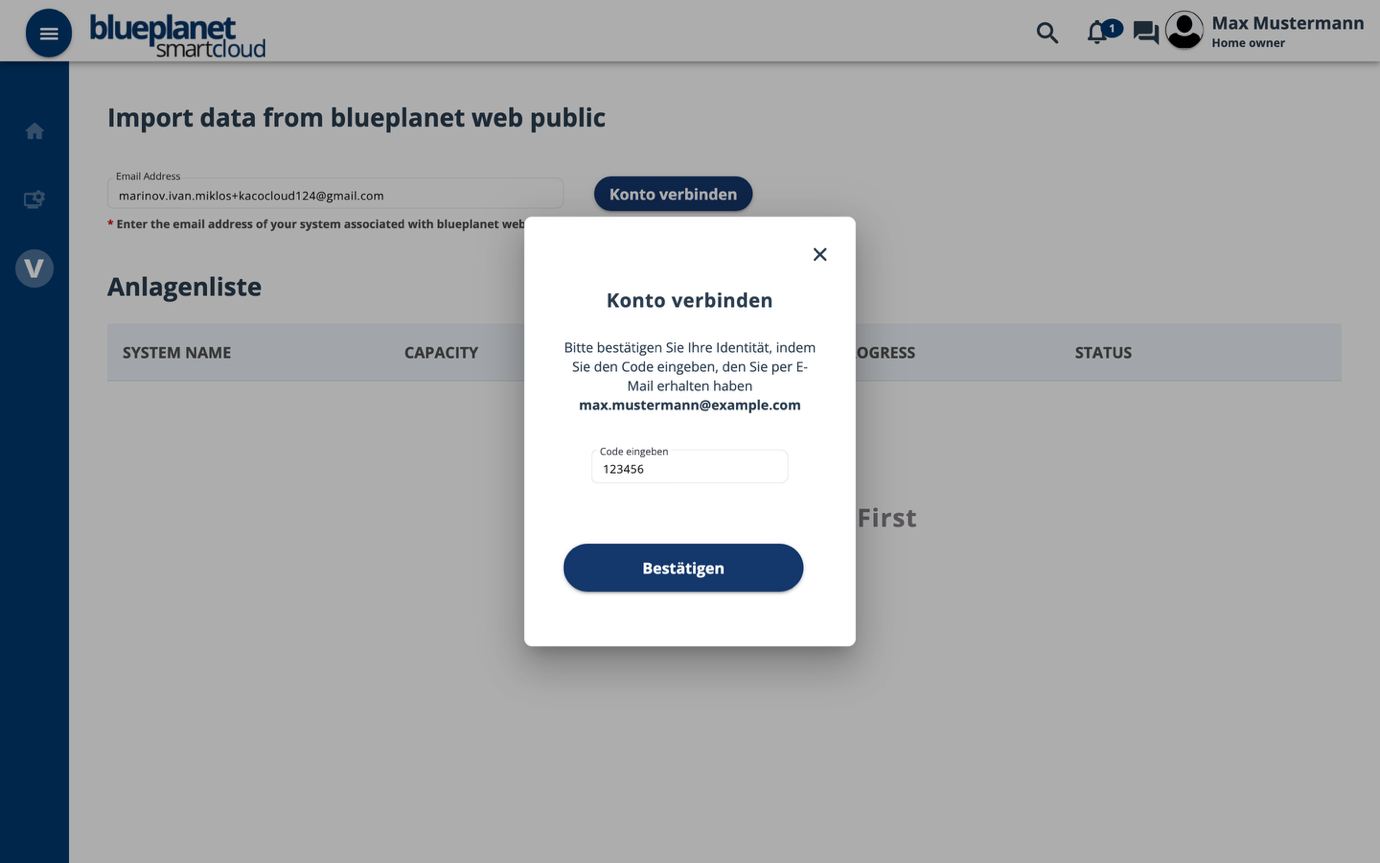
Wait for the email and copy the 6-digit code.
2.5 Confirm Code #
Enter the code and click “Confirm”.
2.6 Select System to Import #
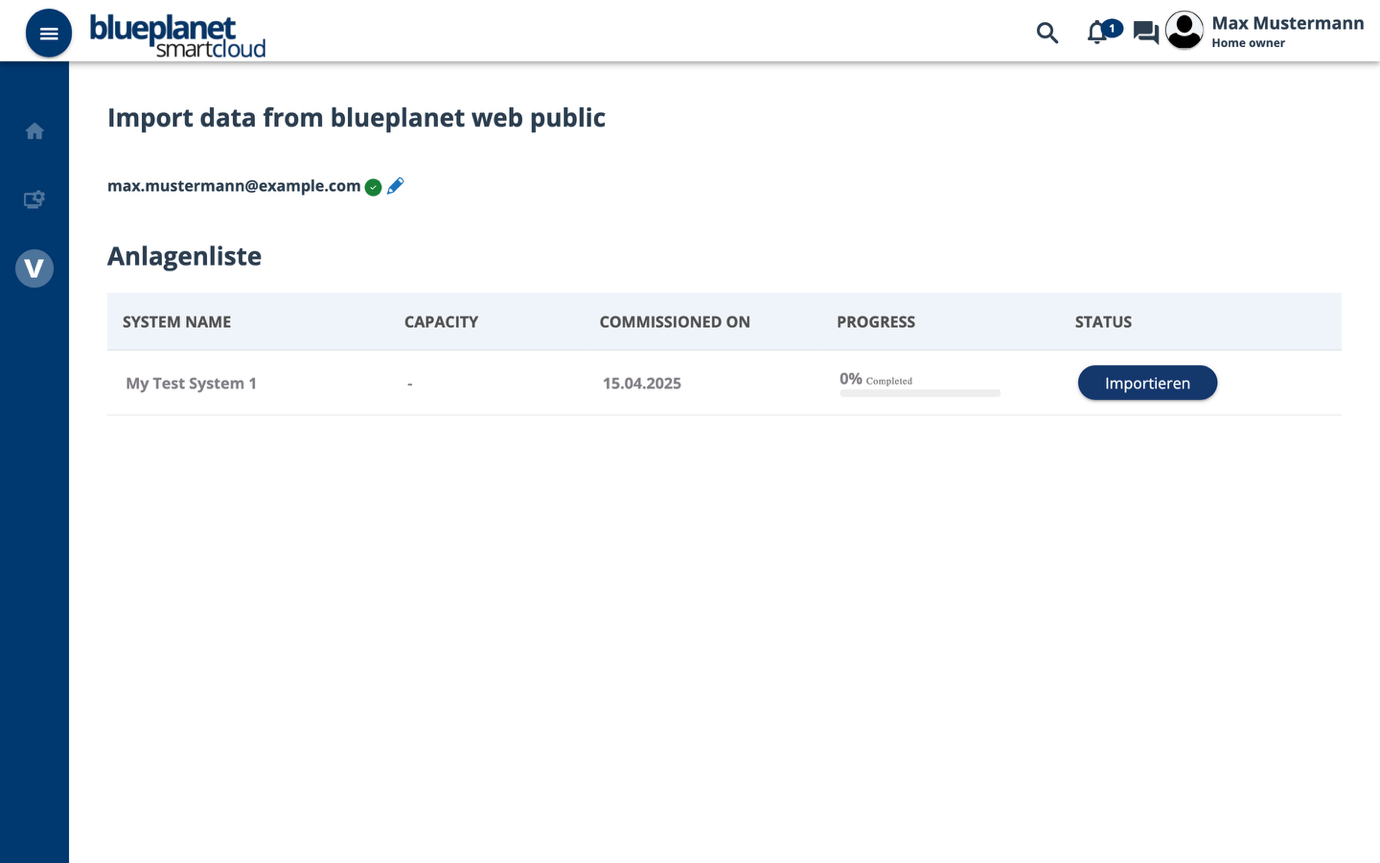
Select which system you’d like to import and click the “Import” button.
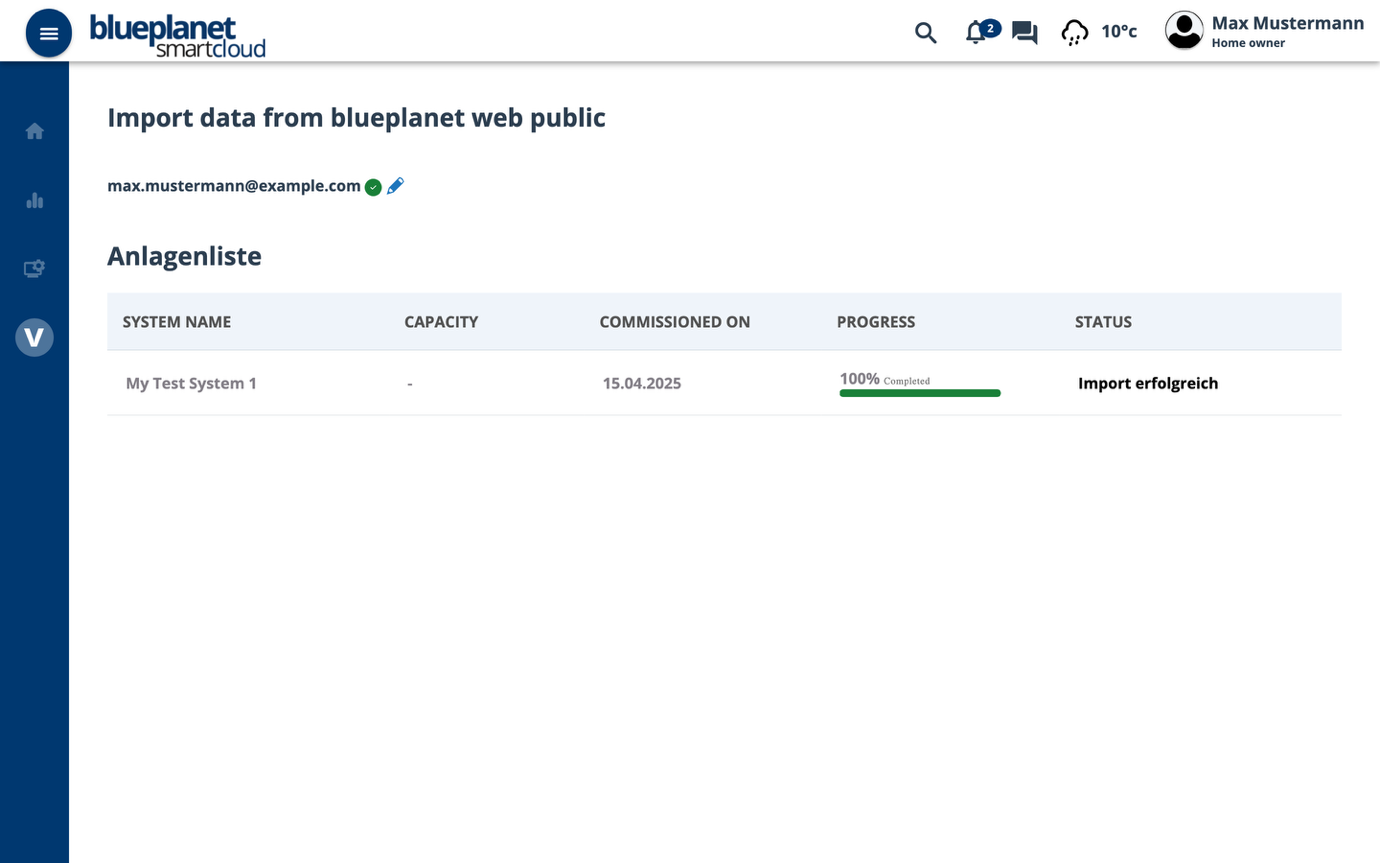
2.7 Import Progress #
Progress should reach 100% within a minute or two.
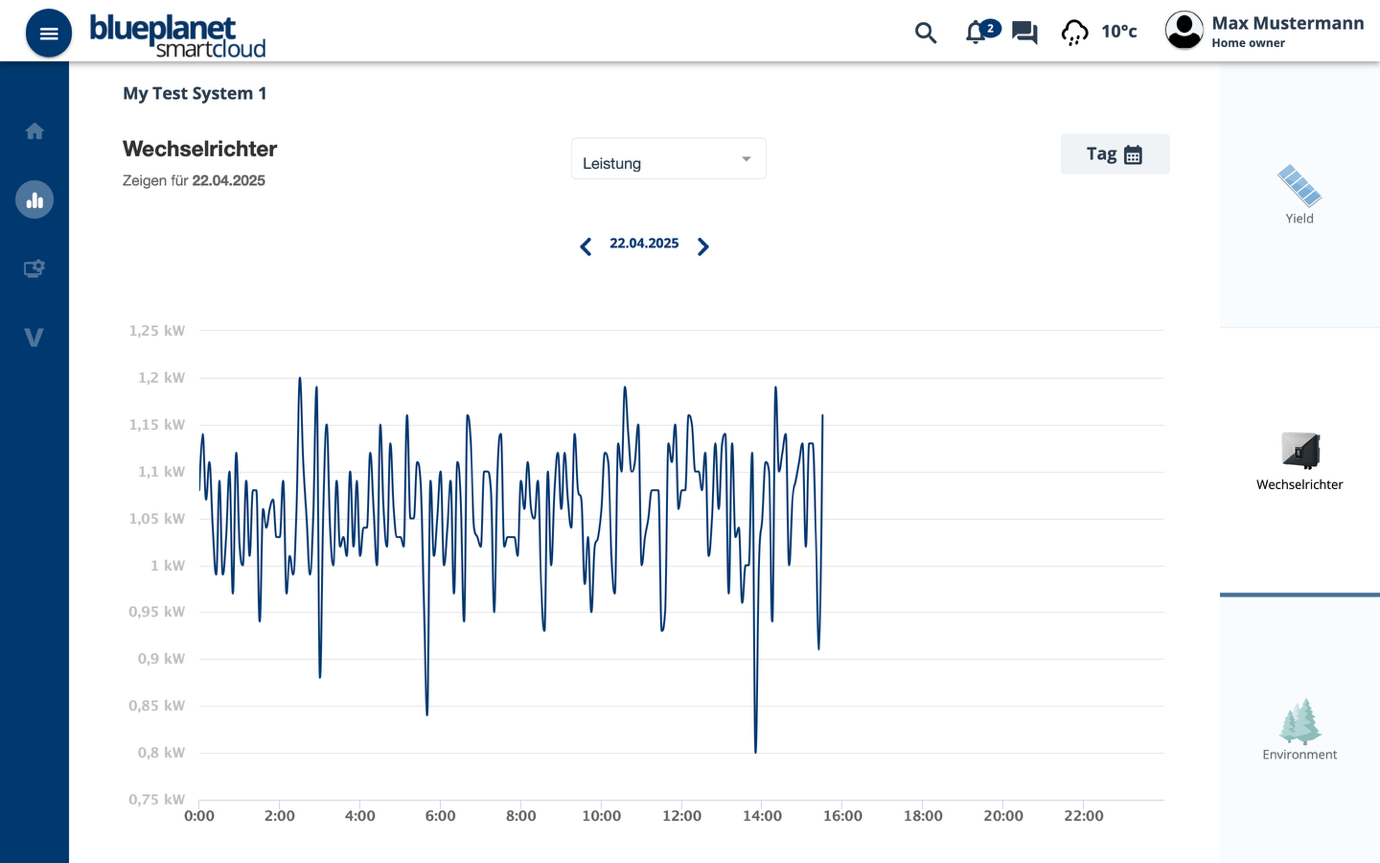
2.8 Analytics Available #
Analytics becomes available after successful import.
Note: You may need to wait a minute and refresh the page for the analytics button to appear.
Summary #
You have successfully migrated your system from blueplanet web public to blueplanet smartcloud. You can now access all the new features and enhanced analytics available in the smartcloud platform.
Need Help? #
Note: If you do not have access to the blueplanet Web public email ID, want to delete a system created by mistake, reimport devices, or have any other queries, please contact customer support:
Customer Service: https://kaco-newenergy.com/service/customer-service