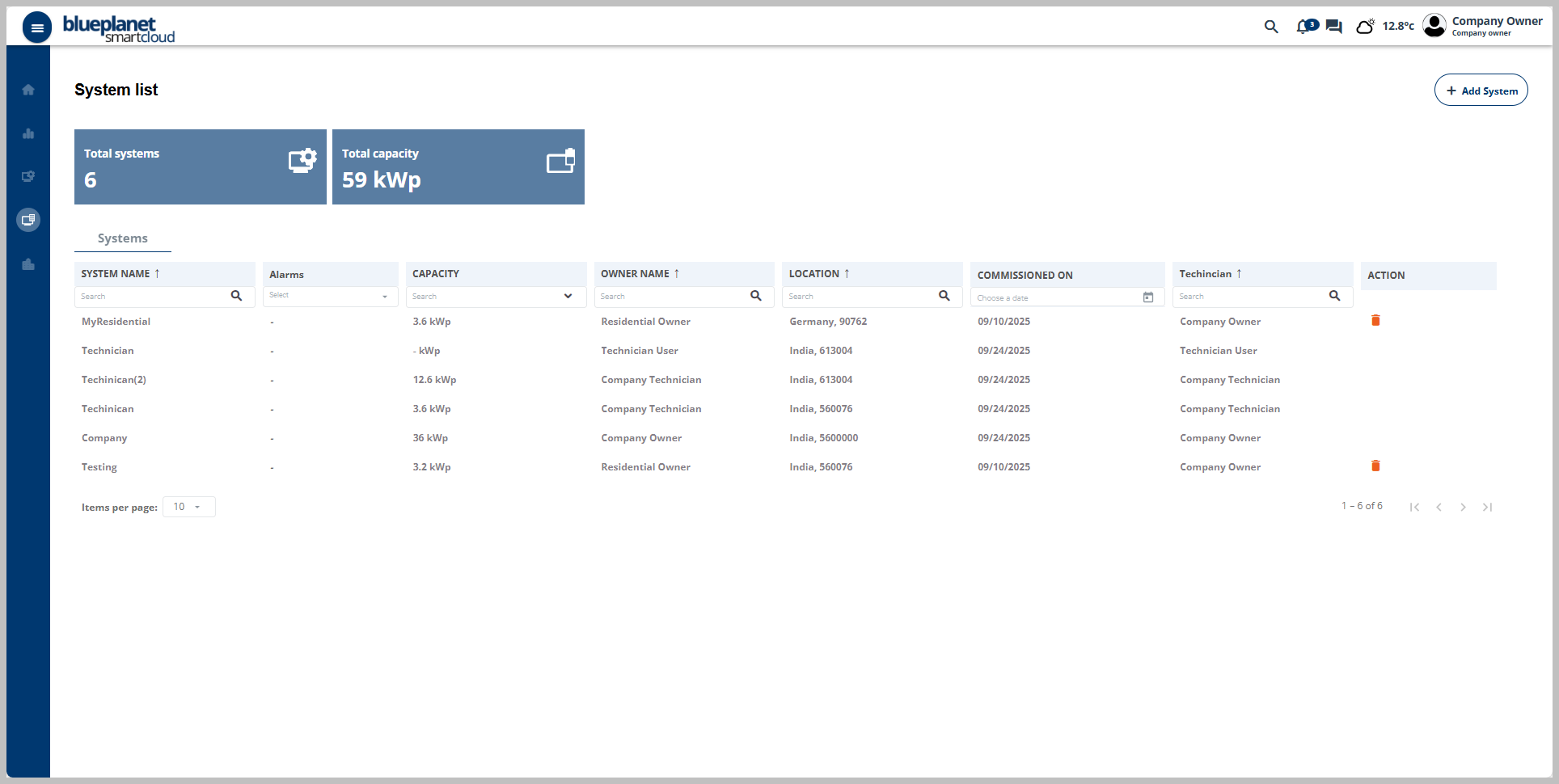
System list #
This document describes the System View dashboard provides a comprehensive list of all plants (systems) created by the company and their Technician who associated. This dashboard allows you to easily view, access, and manage system information.
Dashboard Features #
The list of systems includes the following details for each plant:
- System Name: The name of the system/plant.
- Capacity: The total capacity of the system.
- Owner Name: The name of the current owner of the system.
- Location: Displays the city where the system is created.
- Commissioned Date: The date when the system was commissioned.
- Technician: Shows the name of the installer responsible for setting up the system.
- Action: - Delete the system.
Table Functionality #
-
Sorting:
Users can sort the list by any of the fields above to quickly organize and find systems. -
Paging:
The table view supports paging, allowing users to navigate through large lists of systems efficiently. -
Filters:
Each column includes a filter, similar to Excel, enabling users to search and filter systems by any field. Filters and search can be combined to continuously reduce the list and quickly locate specific systems. -
Total Numbers and Capacity:
At the top of the dashboard, key metrics such as the total number of systems and the sum of system capacities are displayed for quick reference.
Add System #
As a company owner, you can efficiently associate existing user systems with your company using a unique System_ID.
How to Add a System #
- There is an Add System button on the system list page for installers to add a system using a System_ID.
- Clicking the Add System button opens a pop-up window.
- The pop-up contains:
- An input field for entering the System_ID.
- Add and Close (X) buttons.
- You can close the pop-up by clicking the X button or pressing the Esc key.
System Pending Requests #
- A new section, System Pending Requests, is displayed above the system list.
- This section shows a large number indicating how many systems are pending approval.
- The section includes a table with the following columns:
- System ID
- Requested On
- Action
- Pagination is enabled after 5 entries, and you can sort items per page.
Adding a System #
- When a valid and unique System_ID is entered and Add is clicked:
- The system validates the System_ID.
- If valid, the new system is added as a row in the pending requests table.
- The pop-up closes automatically.
- If the request is accepted, the entry is removed from the pending list and the system details are added to the main System list.
This feature allows company owners to efficiently manage and associate systems with their company, ensuring a streamlined workflow for system onboarding and approval.