Transfer Ownership #
(Instructions for transferring ownership.)
Functionality Overview #
The Transfer Ownership feature allows the current owner of the monitoring system to securely transfer system ownership to a new owner(end user), ensuring seamless access for the new owner and revoking access for the previous owner.
How to Transfer Ownership #
-
Initiate Transfer
- Click the Transfer Ownership button available on the System Overview screen.
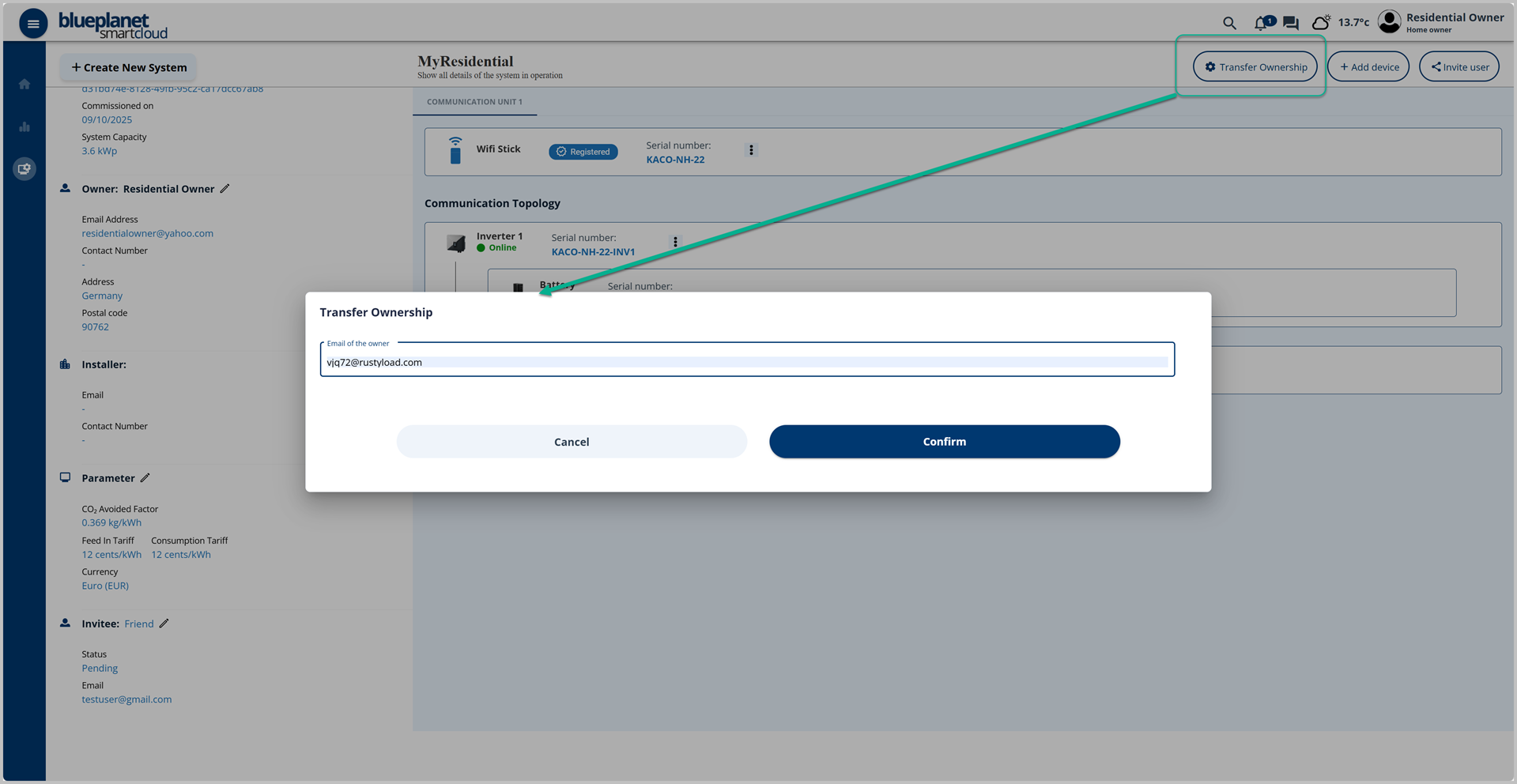 Pic 1- TransferOwner
-
Enter New Owner Details
- A pop-up window appears prompting you to enter the email address of the new owner.
- The pop-up provides two options:
- Cancel: Cancels the action and closes the window.
- Confirm: Proceeds with the ownership transfer.
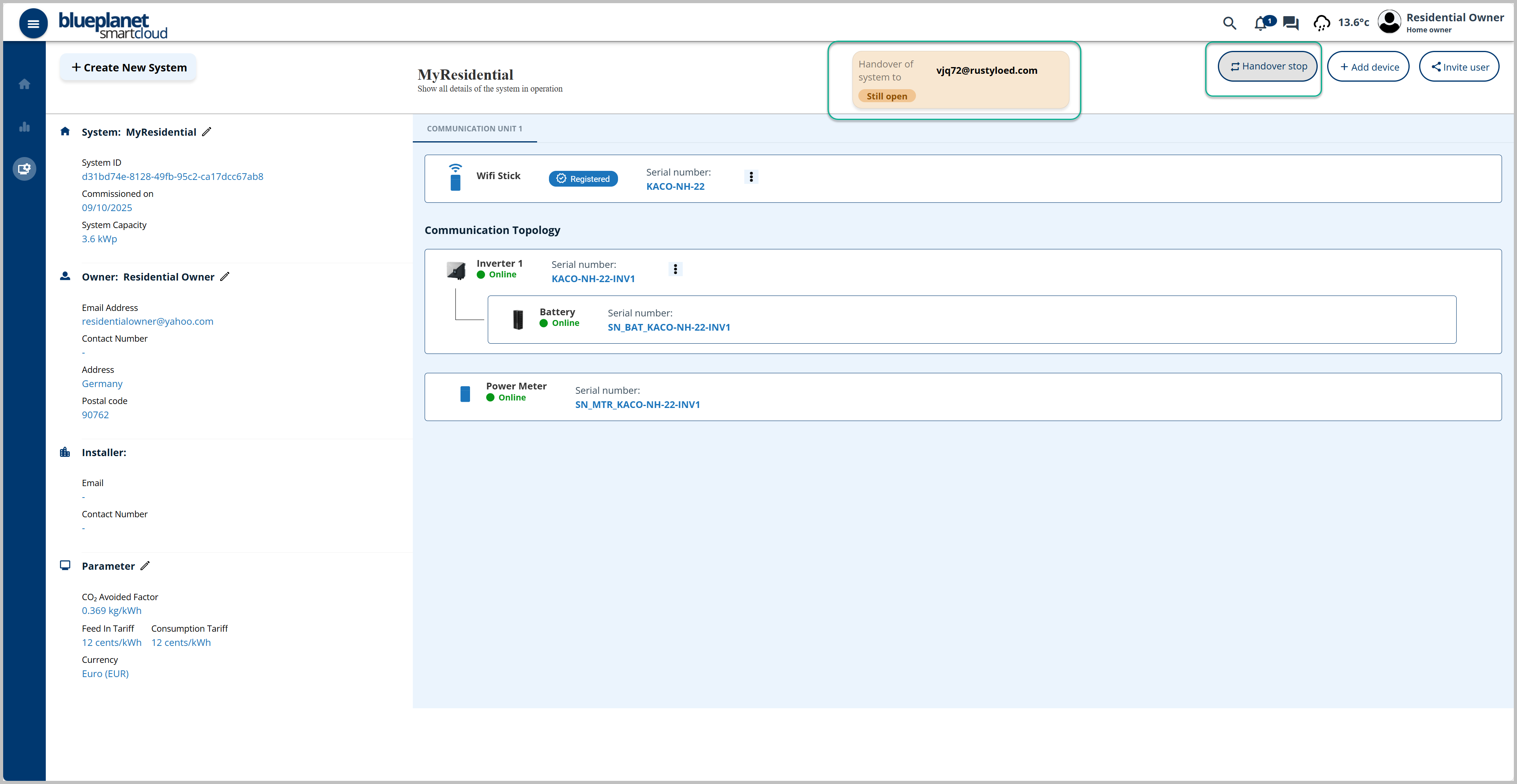 Pic 2- PendingOwnership
-
After Confirmation
- Once confirmed, the system and device details are no longer available to the current homeowner, including removal from their device area.
- The new user receives an email notification about the handover.
- If the new user is not registered with KACO, they receive an invitation in email to join KACO Cloud.
- The current user sees a Stop Transfer button, which can be used to halt the transfer process. If used, a notification is sent to the new user.
-
For the New Owner
- Upon logging into the portal, the new owner can see and access the handed-over system.
- If the new user is not registered and the invite expires (after 5 days), the transfer request is cancelled and the current homeowner is notified.
Additional Notes #
- The transfer process waits for up to 5 days for the new user to accept. If not accepted, the transfer is cancelled automatically.
- All actions are accompanied by appropriate notifications to involved parties.