Invite user #
Functionality Overview #
The Invite User feature allows you to share access to your system with another user, enabling them to view and investigate the system as needed.
How to Invite a User #
- Access the Share System Option
- Locate and click the Invite user button in the System View interface.
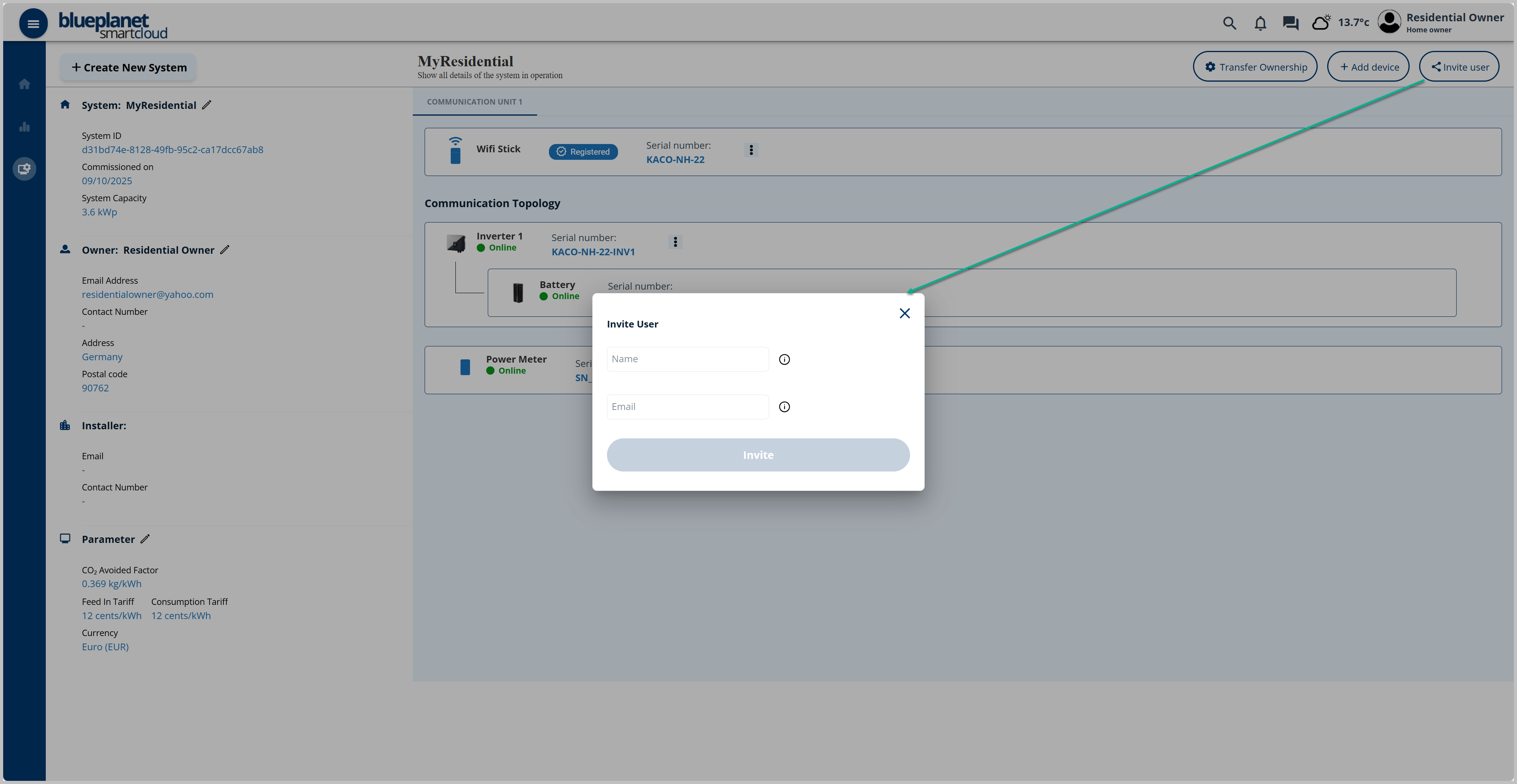 Pic 1- Interace for invite user
-
Enter User Details
- A Pop-up “Invite user” will appear prompting you to enter the name and email address of the person you wish to invite.
- The email address will be validated to ensure it is in a correct format (e.g., user@example.com). Invalid email addresses (such as
test@ortest@com) will not be accepted.
-
Send Invitation
- After entering the required details, invite the user.
-
Access the System
- Once the invitation is sent, the invited user will receive access and will be able to view the system after logging in.
Additional Notes #
- Invitations cannot be sent to invalid email addresses.