Create System #
There are two possibilities to create System.
- Create system via search
- Create system through “Create Button” from system overview page.
Create System through search button
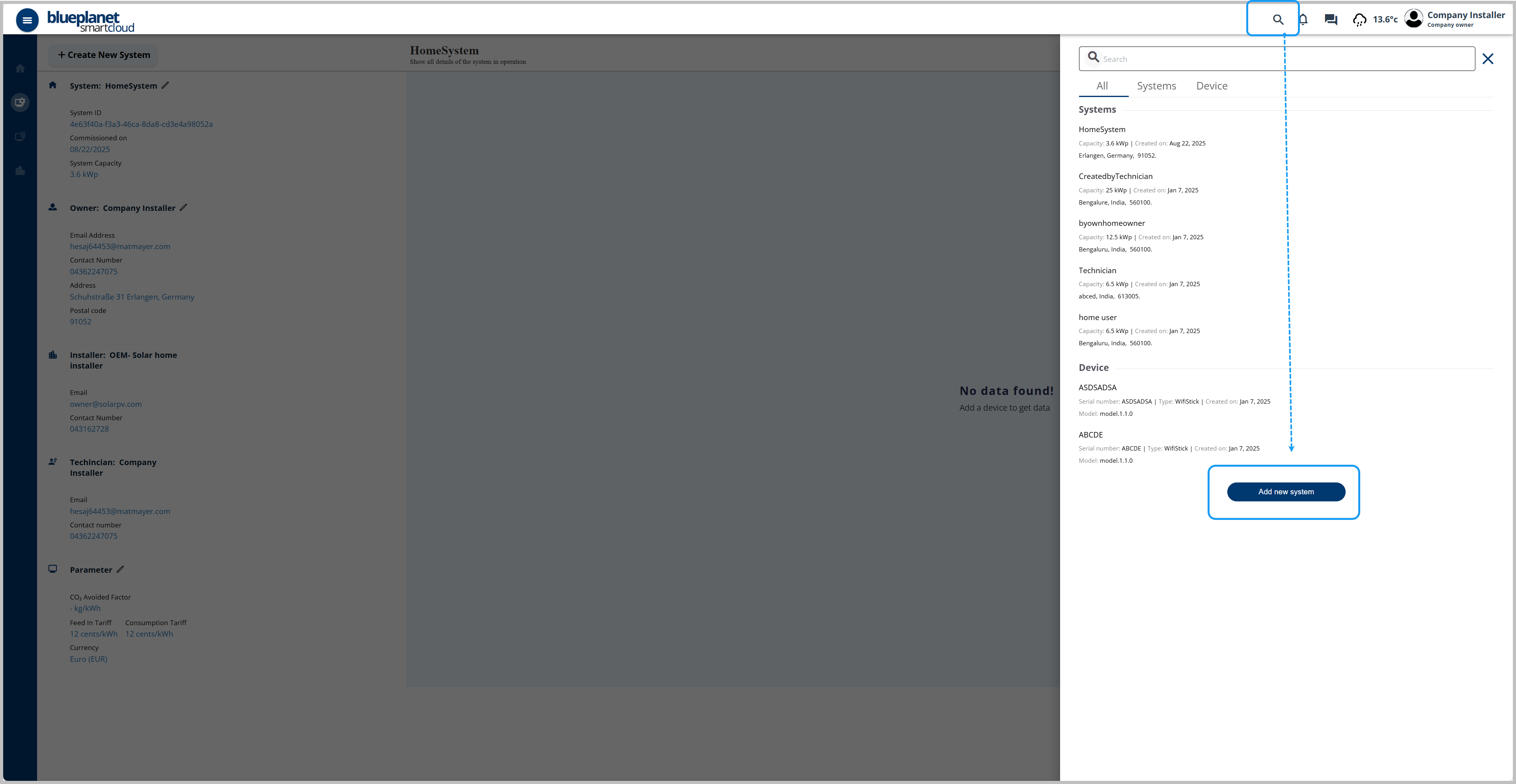 Pic-1 Create System through search button
Create System through create button
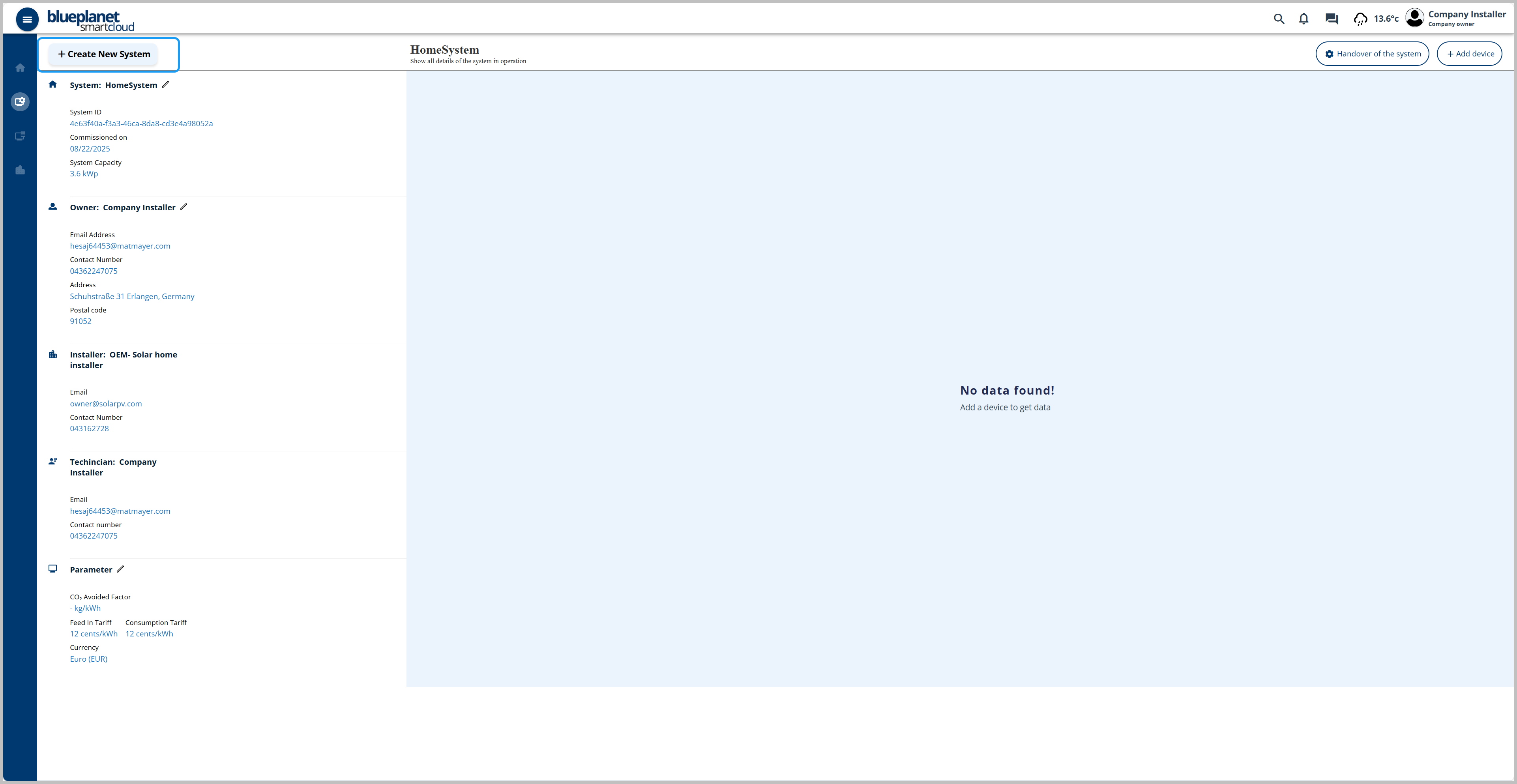 Pic-2 Create System through create button
User needs to navigate to the System configuration page in the portal
- Login to smart cloud.
- Navigate to System overview
- Click on create system
- Display the wizard to create the system
Fill the system details
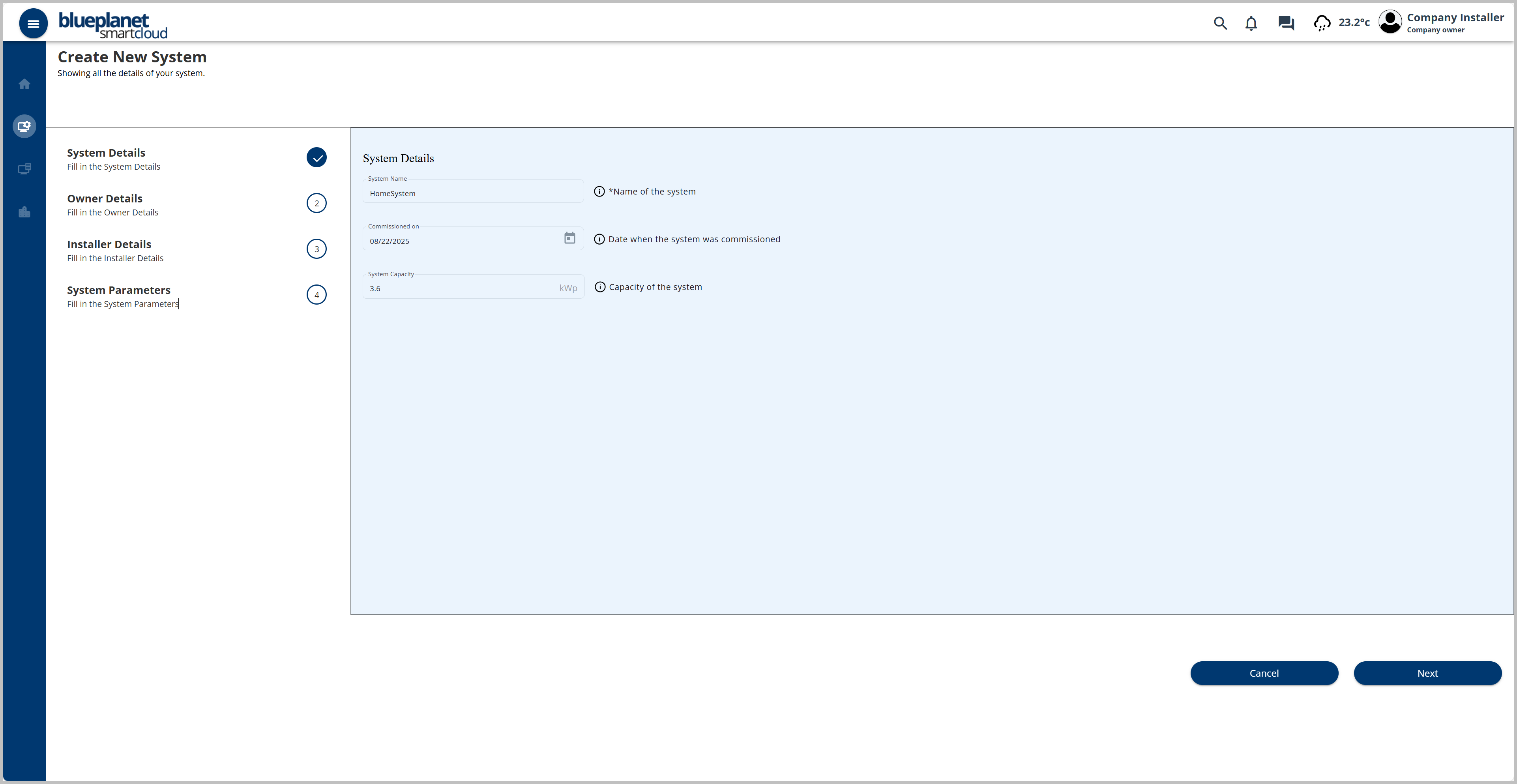 Pic 3- System information
- System name will be auto populated based on the name of the user.
- Commissioned-on will be date of the configuration, the user can change it later.
- Enter the System capacity and click on Next.
Fill the owner details
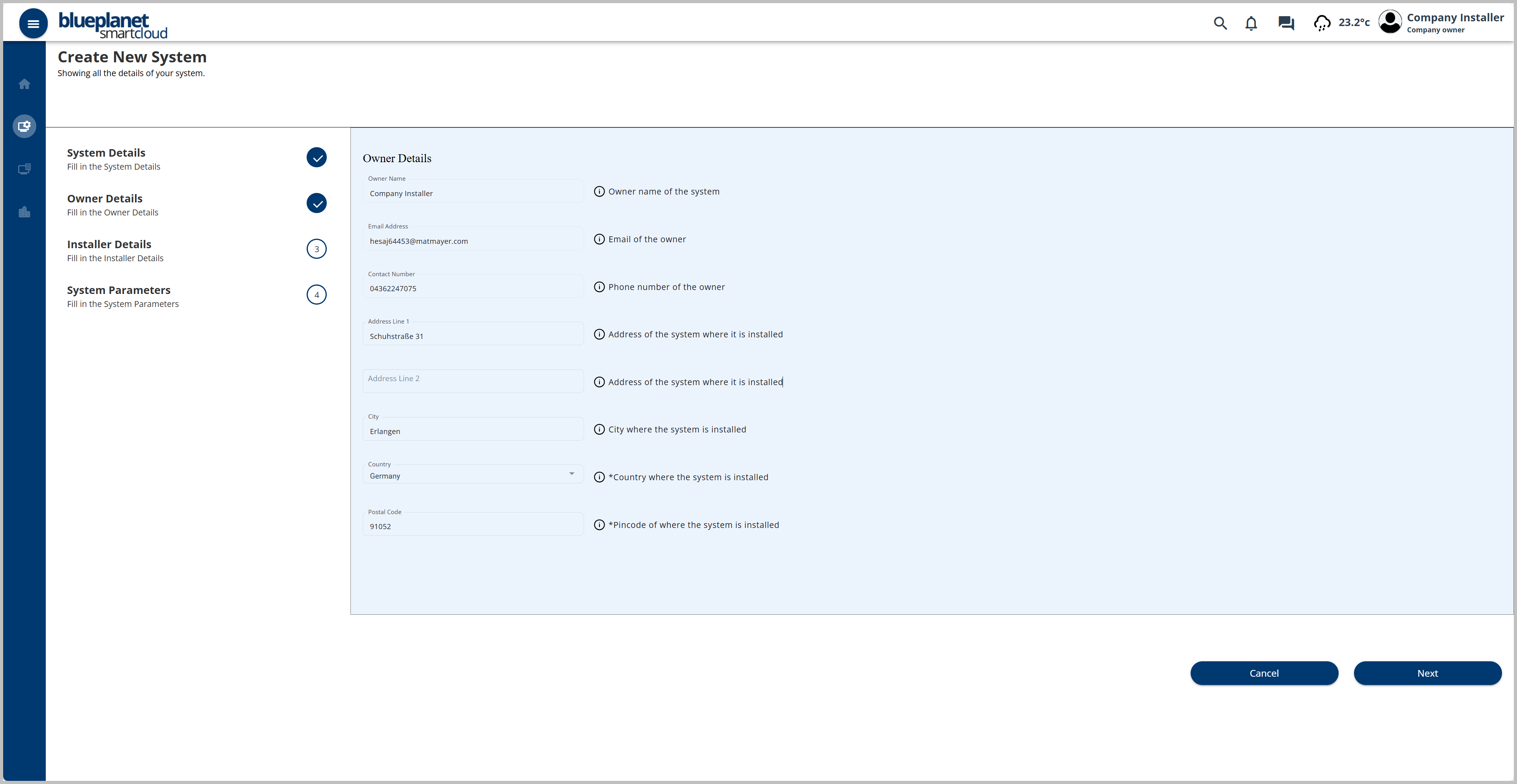 Pic 4- System Owner information
- Owner Name will be auto populated based on the registered user details.
- Email Address will be auto populated based on the registered user details.
- Contact number will be auto populated based on the registered user details.
- Enter the address of the user where the system has been installed.
- Enter the city where the system has been installed.
- Choose the country where the system has been installed.
- Enter the Postal code of the system where it’s been installed. Note: Weather predictions are based on your postal code; therefore, a valid entry is required
Fill the Installer details
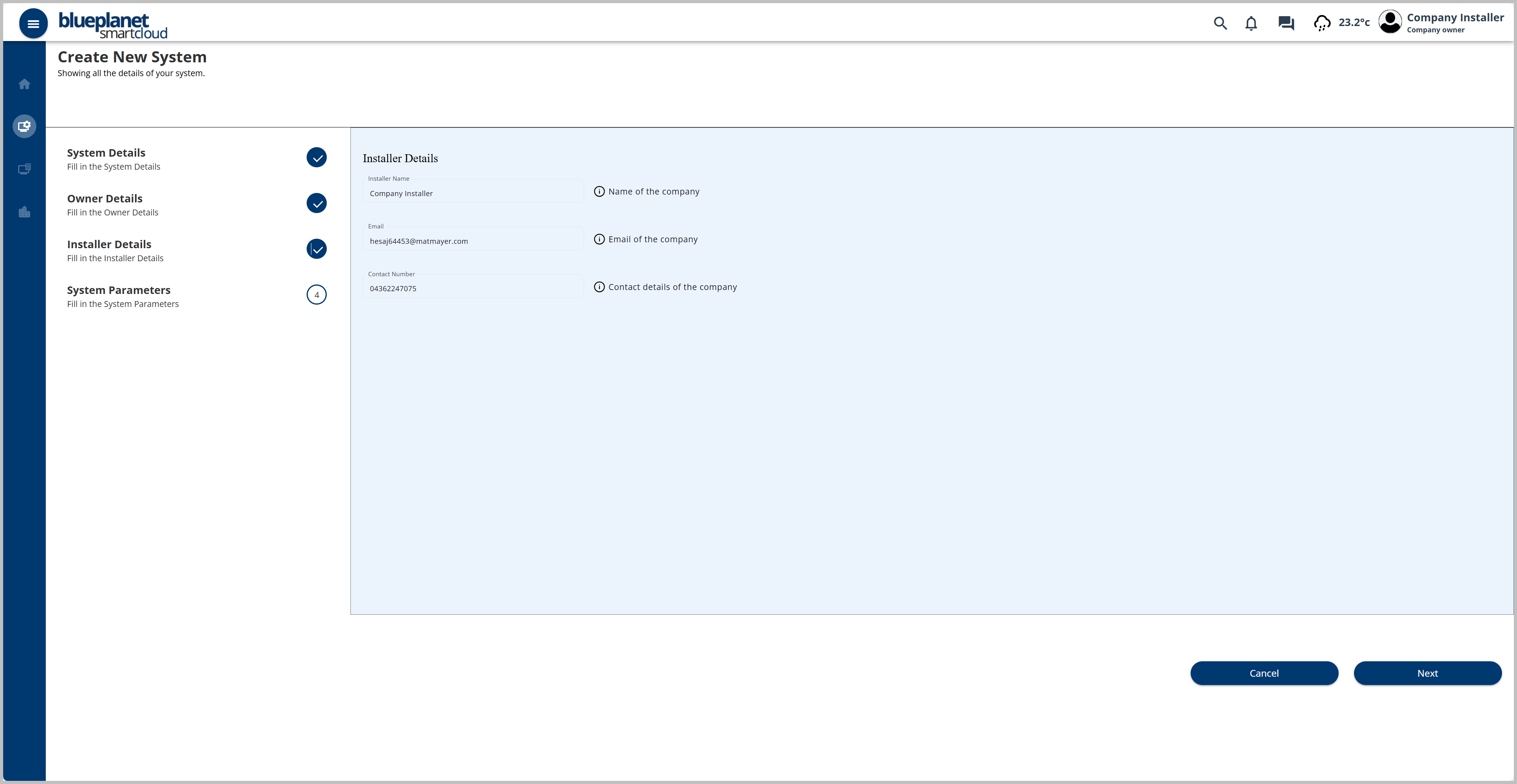 Pic 5- Installer information
This section will be autofill , when the system is created by installer or Technician.
When the system is created by Homer Owner , The installer details will be initially auto populated by the howme owner details, once the system is created, the Installer details will be empty.
Fill the System parameter details
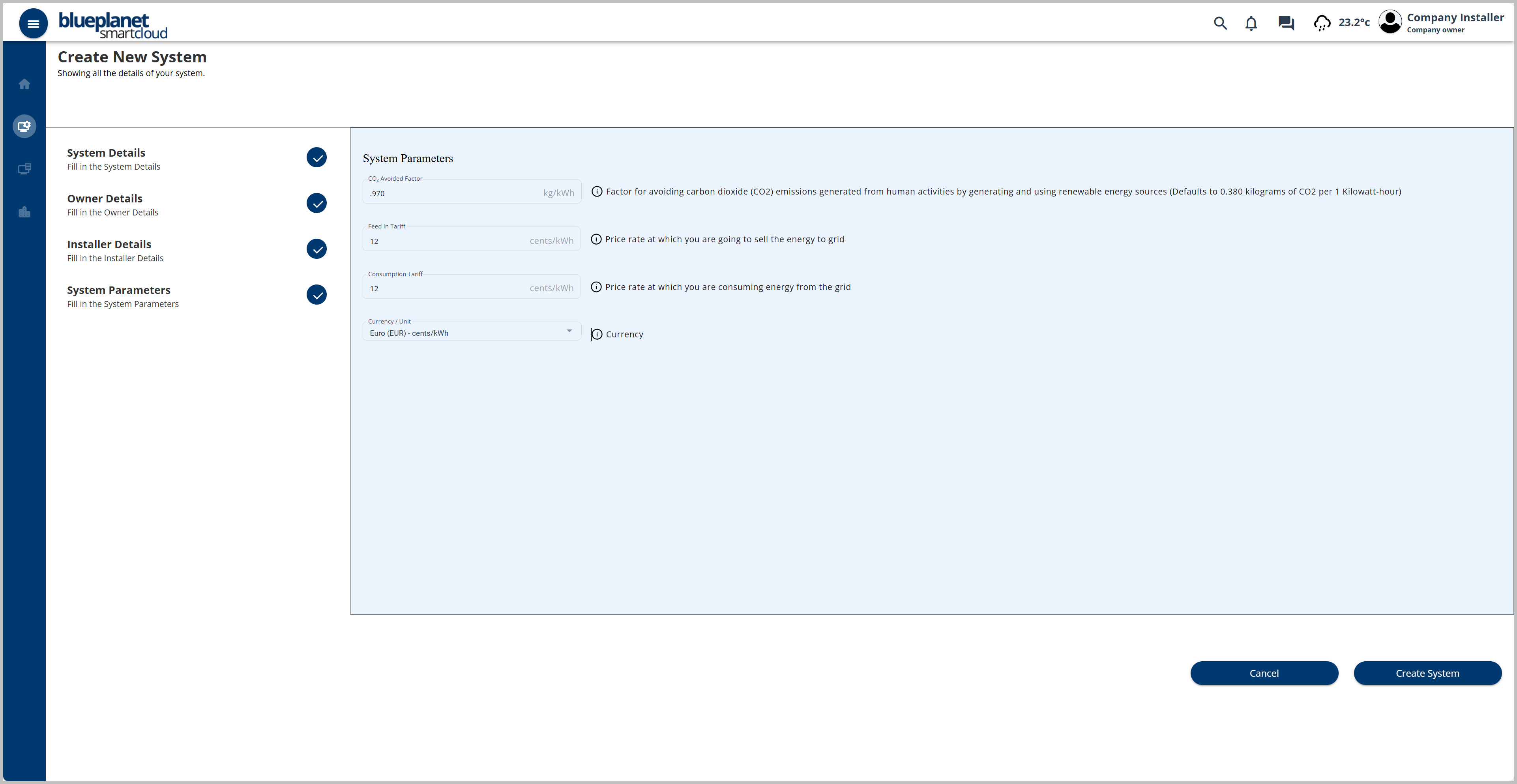 Pic 6- System parameters
This section contains 4 important parameters as below:
- Co2 Factors
- Feed-in Tariff
- Consumption Tariff
- Currency selection.
Co2Factor
Users to input the carbon dioxide emission factors associated with their Energy Vendor. This value is crucial for calculating the environmental impact and carbon footprint. Users should enter the CO2 factor in the appropriate units (e.g., kg CO2 per unit of activity) based on the guidelines provided. Accurate data entry ensures reliable and meaningful environmental assessments
Feed-in Tariff
Users should enter the feed-in tariff rate as specified in their contract or policy agreement. This rate is typically guaranteed and above-market to encourage renewable energy production. Accurate data entry ensures the calculation of monetary benefits Money saving chart.
Consumption Tariff
Users should enter the consumption tariff rate based on their contract or policy agreement. Accurate data entry ensures the calculation of monetary benefits in Money saving chart.
Currency Selection The user can selected the country where the system has been installed, the relevant currency also displayed along the county selection. This selection will impact on the display of currency in Save charts, Diamond power flow charts.
At any point of time user can decide to cancel the configuration by click on “Cancel” button.
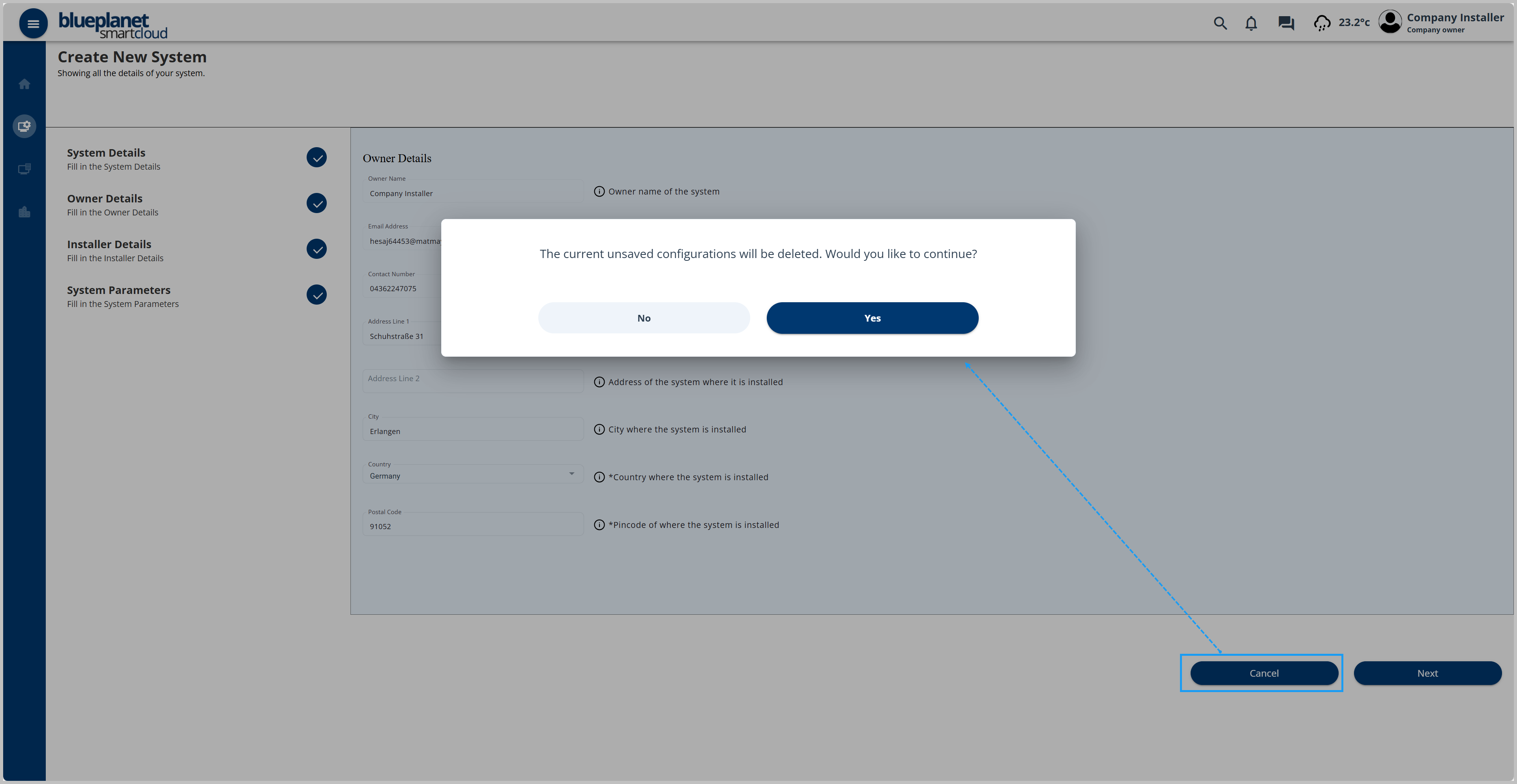 Pic 7- Cancel dialog
Click on create system will be landing the System overview page as below
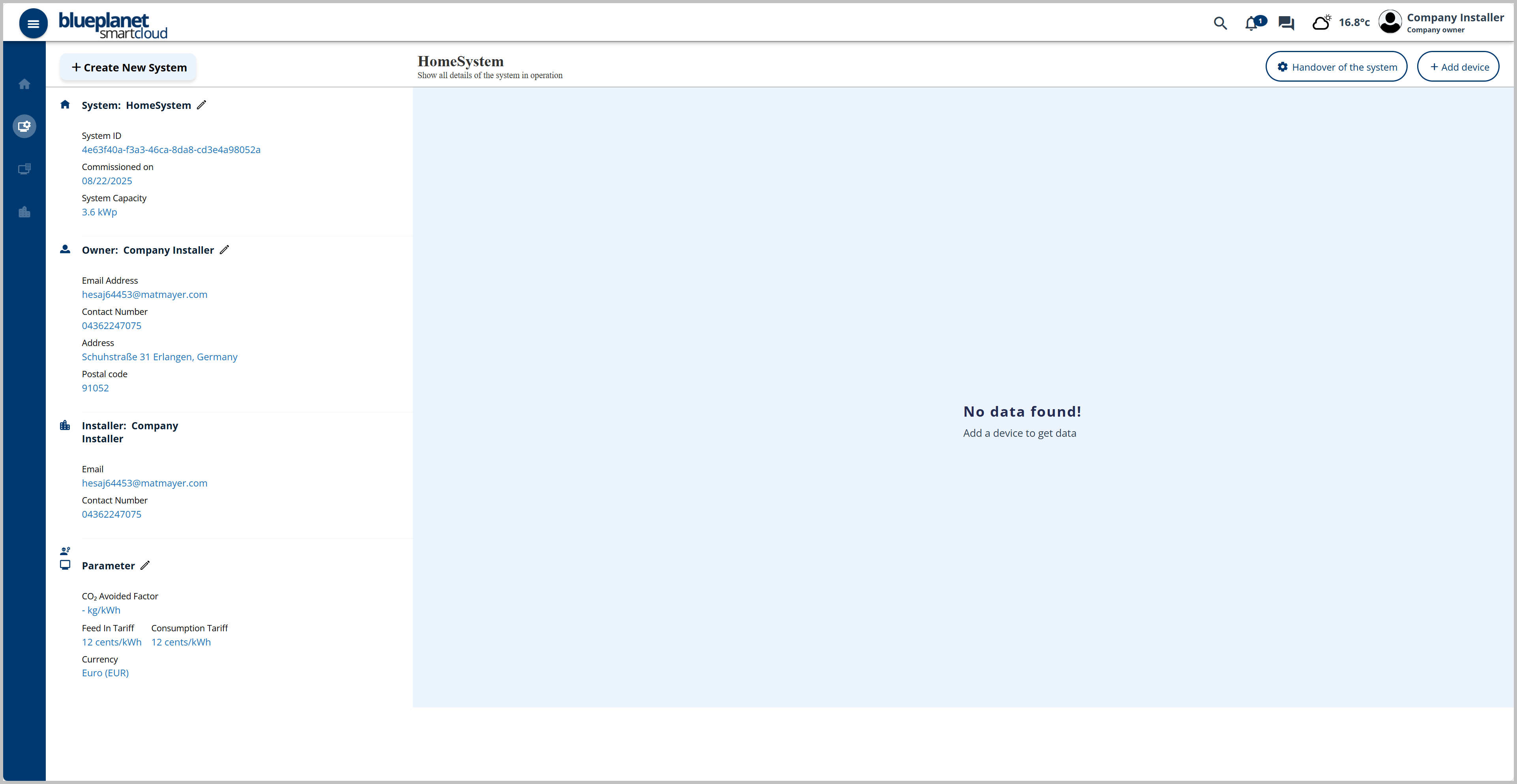 Pic 8- System view