Registration to Company #
This document describes the enhanced registration process for Technicians to ensure only authorized company technicians can join a company.
Registration Workflow #
-
Request to Join Company Screen
After submitting the registration, the technician is redirected to a page called “Request to join Company”.- The technician cannot create a system or navigate to the power flow screen until the installer/company user provides the appropriate approvals.
- If any of the fields (Company Owner’s Email, Company Name, or Company Website) are valid, the request is submitted successfully.
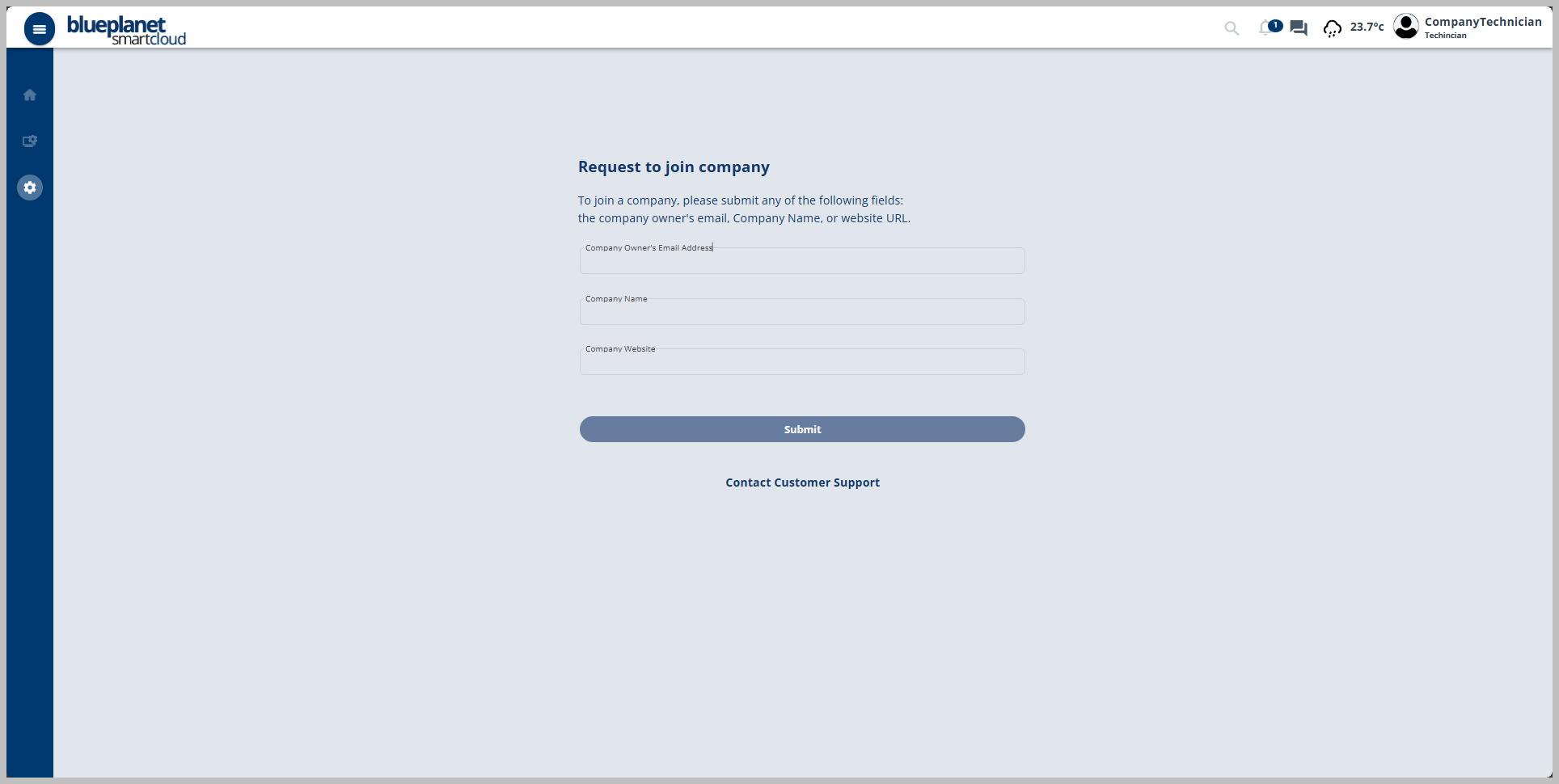 pic 1 -Landingpage
-
CompanyOwner Notification
Upon submission, a notification is sent to the Company Owner requesting approval for the technician to join the company.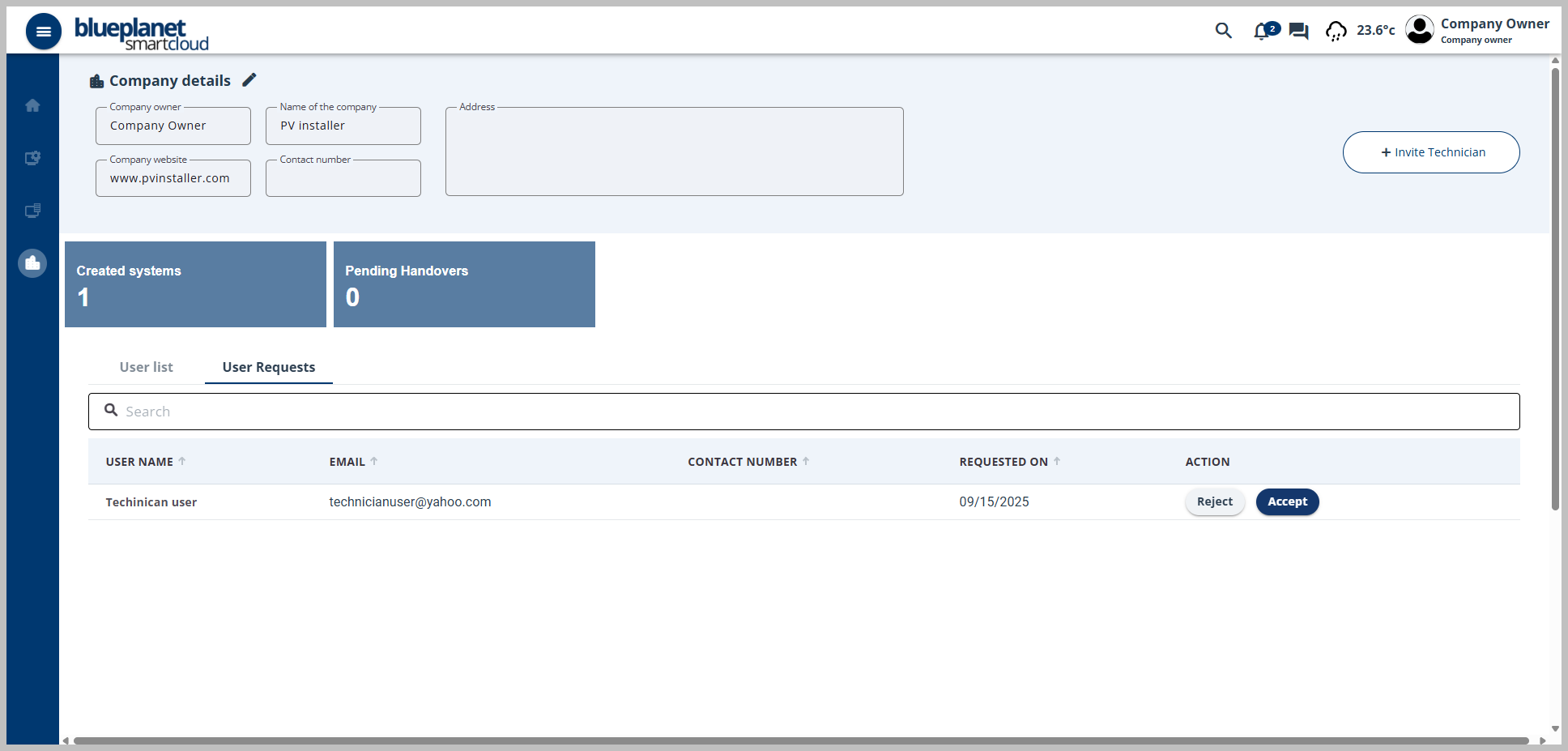 pic 2 -Companyowner view
-
Technician Lock Screen
After submitting the registration, the technician is redirected to a locked screen indicating their request is pending approval.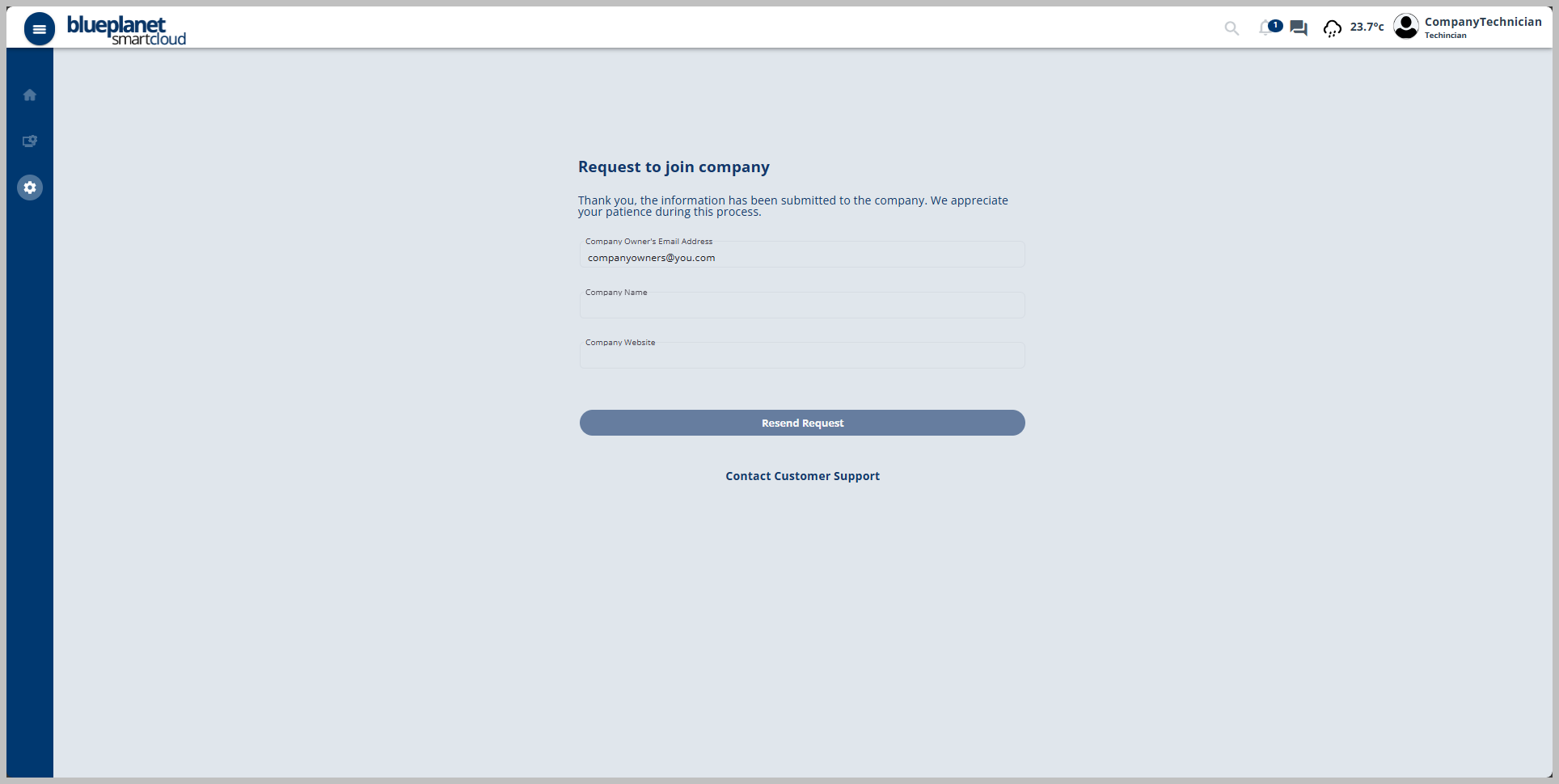 pic 3 -Awating for approval
-
Editable Submission Fields
On the locked screen, the technician can edit and resubmit the company owner’s email and website if a mistake was made.- Resubmit Limitation: Only 1 resend request is allowed per day.
- If the Resubmission limit is reached, the message “You’ve reached your edit limit for today. Please try again tomorrow.” is displayed.
- Edit is possible only when the request is denied by the company owner.
Approval Process #
-
Owner Approval – Accepted:
- The technician is unlocked from the pending screen and officially becomes part of the company.
- The technician can begin work.
-
Owner Approval – Rejected:
- The technician receives a notification of rejection.
- The technician remains on the locked screen.
- The technician can request to different Company to get their access.
- The technician can’t request the same company Owner again.
- The technician either contact support team of kACO or Directly in touch with company Owner to regain the access.
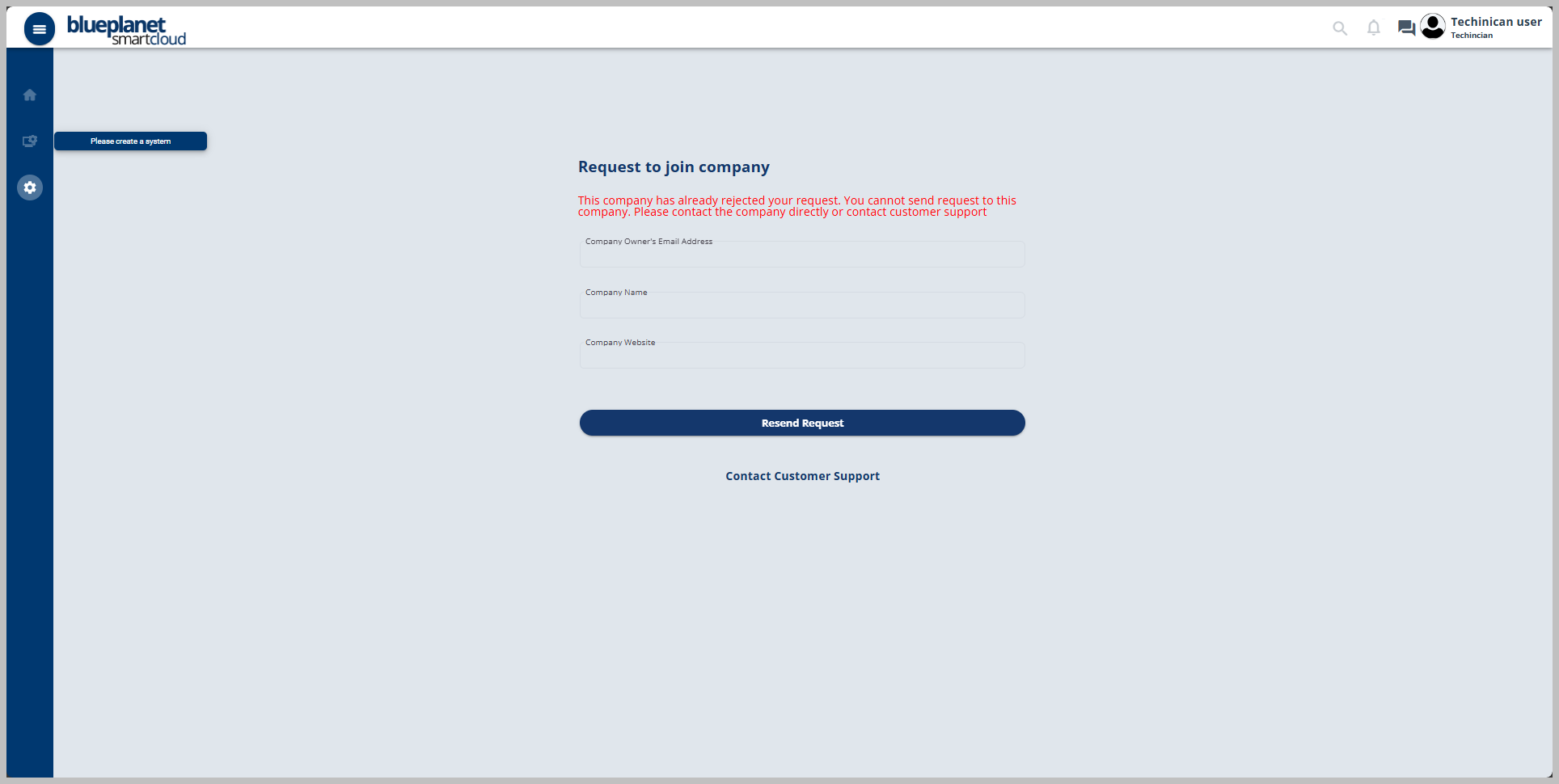 pic 4 -Request Denied by company owner
- No Response Handling:
- If the company owner does not respond, the technician remains in the locked state until action is taken.
Validation process #
When the technician submits the registration form, the system performs the following validations:
-
Company Owner Email:
- Must be in a valid email format (e.g., user@company.com).
- The system checks for an exact match with the company owner’s email in the internal database.
- If the email does not match:
- Message: “Company Owner Email address entered doesn’t match with our internal data, please check and enter the correct email.”
-
Company Name:
- Supports partial or fuzzy matching with company names in the internal database.
- If the company name does not match:
- Message: “Company name entered doesn’t match with our internal data, please check and enter the correct company name.”
-
Company URL:
- Must be in a valid URL format.
- Supports partial or fuzzy matching with company URLs in the internal database.
- If the company URL does not match:
- Message: “Company URL entered doesn’t match with our internal data, please check and enter the correct company URL.”
-
Company Email Check:
- The system considers if the entered email is also a valid company email.
-
User Guidance:
- The system provides real-time feedback and appropriate messages for each field that does not match the database, guiding the technician to correct the information.
-
Edit and Notification:
- Technician can able to edit the agains after the rejection of the request from the company Owner.
- Each time the technician resubmits the form, a new notification is sent to the updated company owner email address.
This robust validation process ensures only legitimate technicians can request to join a company, and helps prevent unauthorized access.